> ## Documentation Index
> Fetch the complete documentation index at: https://docs.dojah.io/llms.txt
> Use this file to discover all available pages before exploring further.
# Enterprise Login
> Let team members sign in to Dojah with your company's identity provider — LDAP, SAML, or OIDC.
**Enterprise Login** sends team members to your company's identity provider before they can open the Dojah dashboard. The first time someone signs in this way, Dojah creates their account and assigns the **Default Role** you choose here. Create that role under [Team](/dashboard-guide/account/settings/team) before you turn Enterprise Login on.
## Login options
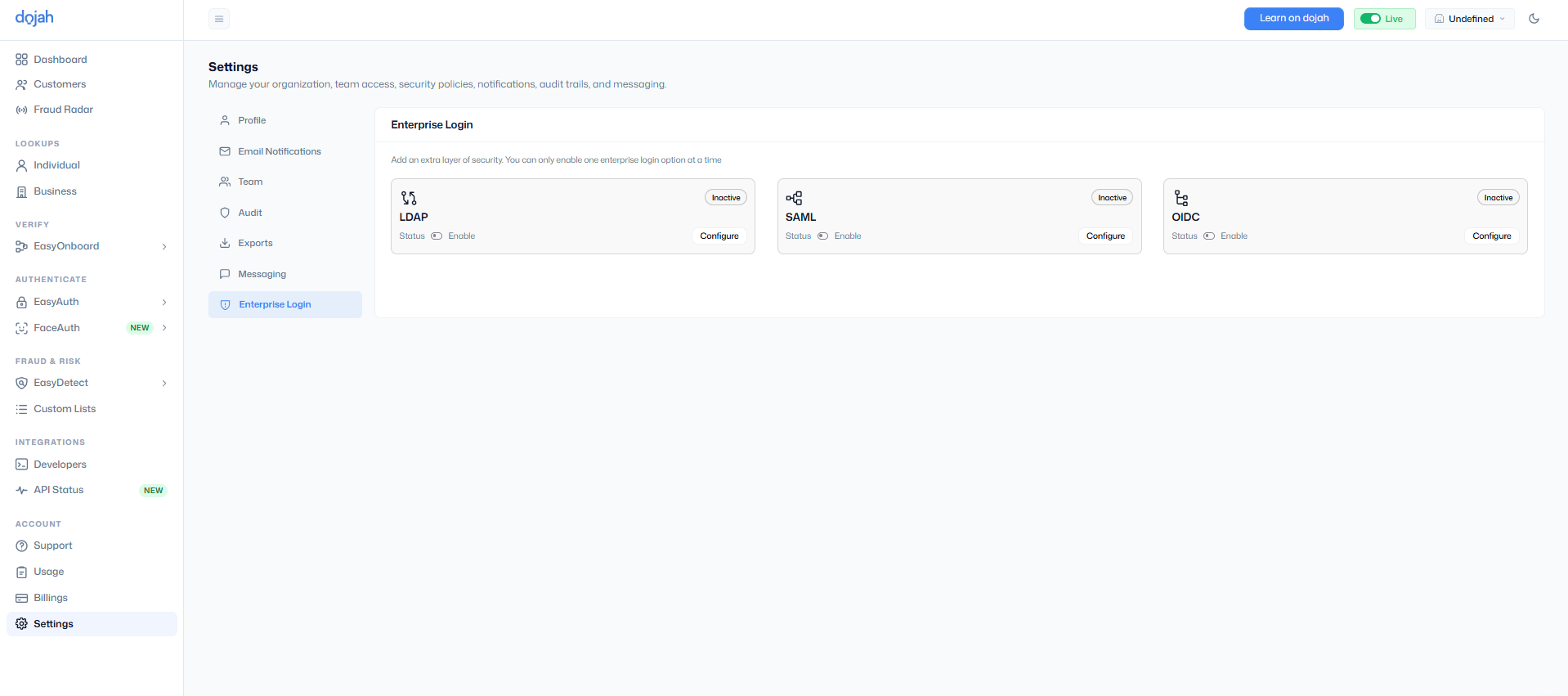
Dojah supports LDAP, SAML, and OIDC. Each option needs **Allowed Email Domains** and a **Default Role**. Only email addresses on those domains can sign in through the provider.
 | Type | What you provide | What Dojah gives you |
| - | - | - |
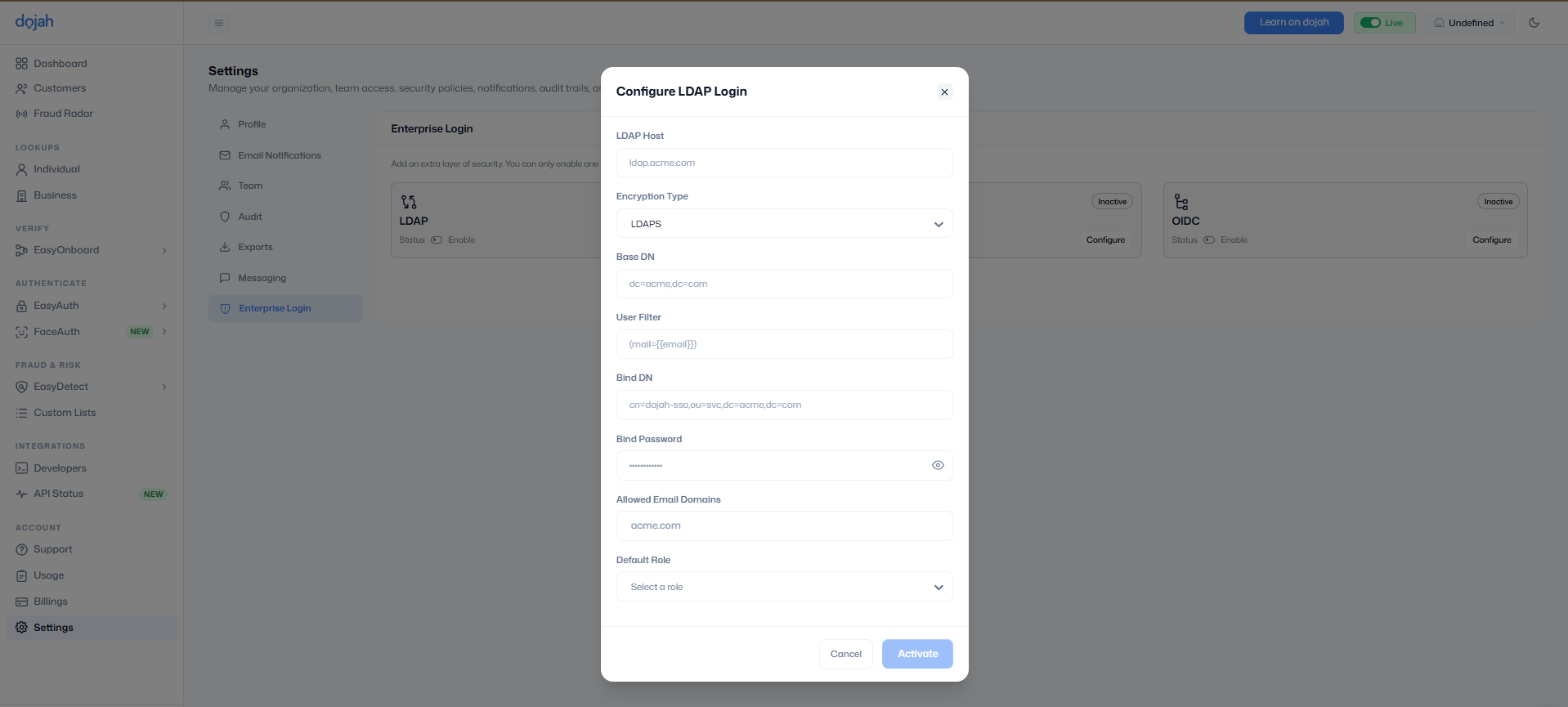
| LDAP | LDAP host, connection type (**STARTTLS** or **LDAPS**), user filter, bind DN, and bind password. | — |
| SAML | Identity provider SSO URL, entity ID, and certificate. | A **Callback URL** to register with your identity provider. |
| OIDC | Issuer URL, client ID, and client secret. | A **Callback URL** to register with your identity provider. |
The user filter and bind credentials come from your identity provider.
## Turn on a provider
Go to **Settings** and select **Enterprise Login**.
Choose **LDAP**, **SAML**, or **OIDC**, then select **Configure**.
Fill in the fields for that protocol, add your allowed email domains, and choose the default role for new members.
Select **Activate**. Team members on an allowed domain can now sign in with that provider.
| Type | What you provide | What Dojah gives you |
| - | - | - |
| LDAP | LDAP host, connection type (**STARTTLS** or **LDAPS**), user filter, bind DN, and bind password. | — |
| SAML | Identity provider SSO URL, entity ID, and certificate. | A **Callback URL** to register with your identity provider. |
| OIDC | Issuer URL, client ID, and client secret. | A **Callback URL** to register with your identity provider. |
The user filter and bind credentials come from your identity provider.
## Turn on a provider
Go to **Settings** and select **Enterprise Login**.
Choose **LDAP**, **SAML**, or **OIDC**, then select **Configure**.
Fill in the fields for that protocol, add your allowed email domains, and choose the default role for new members.
Select **Activate**. Team members on an allowed domain can now sign in with that provider.
 ## How team members sign in
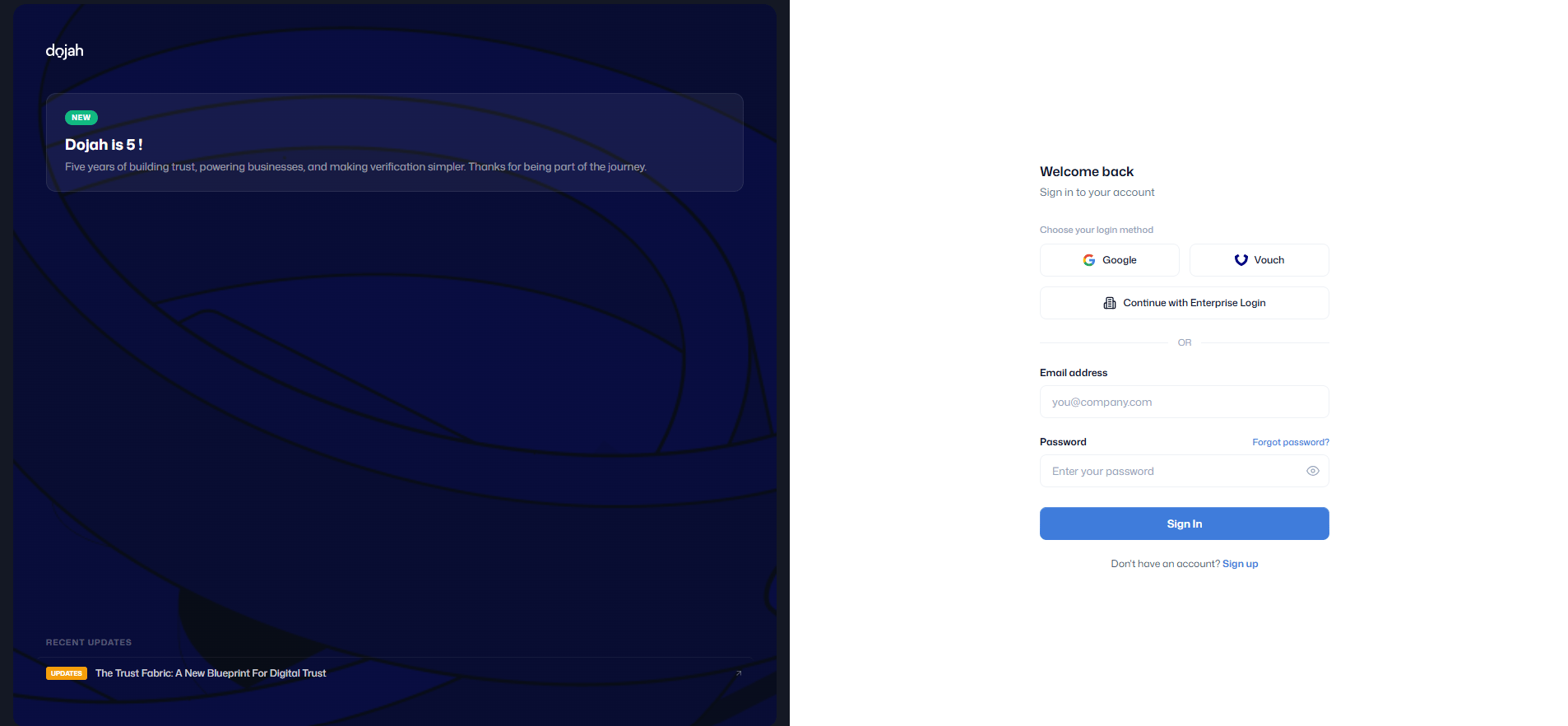
1. On the Dojah login screen, select **Continue with Enterprise Login**.
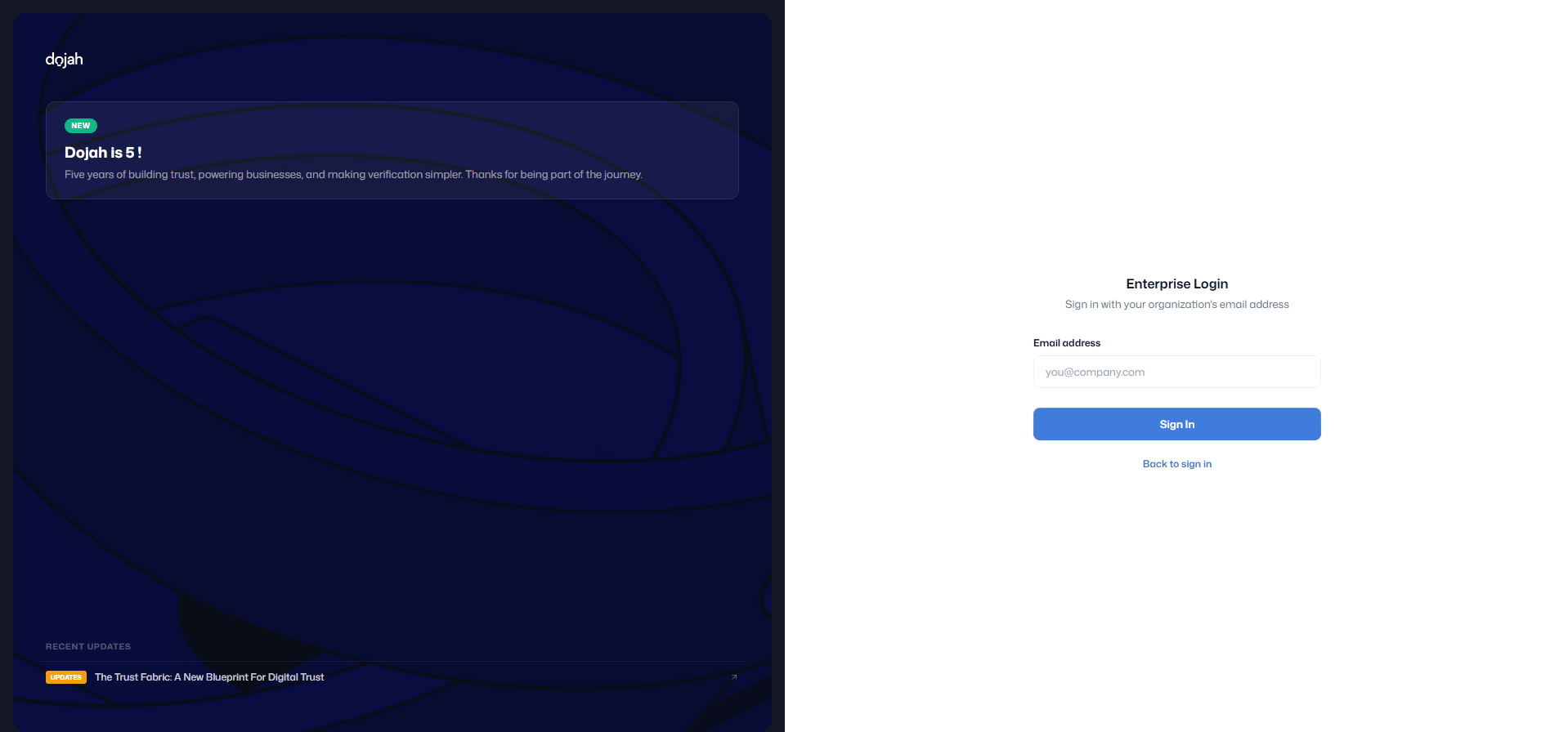
2. Enter a work email address. The domain must be one you allowed when configuring the provider.
3. They complete sign-in with your identity provider.
4. Dojah opens the dashboard. A first-time user gets an account with the default role.
## How team members sign in
1. On the Dojah login screen, select **Continue with Enterprise Login**.
2. Enter a work email address. The domain must be one you allowed when configuring the provider.
3. They complete sign-in with your identity provider.
4. Dojah opens the dashboard. A first-time user gets an account with the default role.
 This documentation is built and hosted on [Mintlify](https://mintlify.com), a developer documentation platform.