> ## Documentation Index
> Fetch the complete documentation index at: https://docs.dojah.io/llms.txt
> Use this file to discover all available pages before exploring further.
# Customers
> A directory of everyone you’ve verified, in one searchable place.
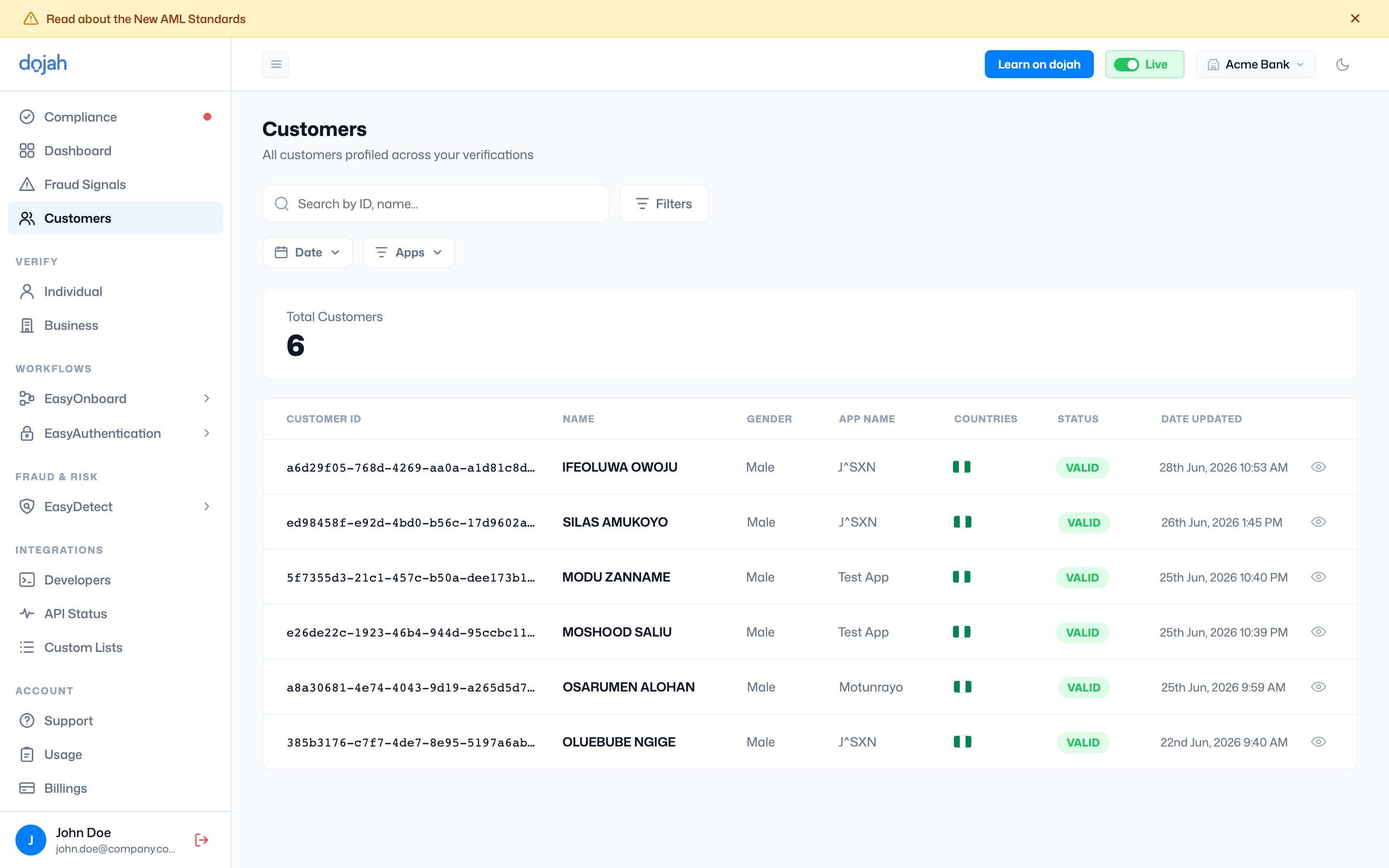
The **Customers** page collects all the people profiled across your verifications into a single directory. Every verified individual becomes a customer profile, so you can look anyone up by ID or name, see which app verified them, and open their full record. The **Total Customers** count at the top tracks how many you’ve built up.
 ## The customer list
Each row is one customer profile:
| Column | What it shows |
| ------------ | ----------------------------------------------- |
| Customer ID | The unique identifier for the customer profile. |
| Name | The customer’s full name. |
| Gender | The customer’s gender, where available. |
| App Name | The app the customer was verified through. |
| Countries | The countries associated with the customer. |
| Status | The profile’s validity, e.g. **Valid**. |
| Date Updated | When the profile was last updated. |
Select the view icon at the end of a row to open that customer’s full profile.
## Viewing a customer
Opening a customer shows their full profile — a consolidated view of everything Dojah knows about them, gathered from every verification you’ve run.
## The customer list
Each row is one customer profile:
| Column | What it shows |
| ------------ | ----------------------------------------------- |
| Customer ID | The unique identifier for the customer profile. |
| Name | The customer’s full name. |
| Gender | The customer’s gender, where available. |
| App Name | The app the customer was verified through. |
| Countries | The countries associated with the customer. |
| Status | The profile’s validity, e.g. **Valid**. |
| Date Updated | When the profile was last updated. |
Select the view icon at the end of a row to open that customer’s full profile.
## Viewing a customer
Opening a customer shows their full profile — a consolidated view of everything Dojah knows about them, gathered from every verification you’ve run.
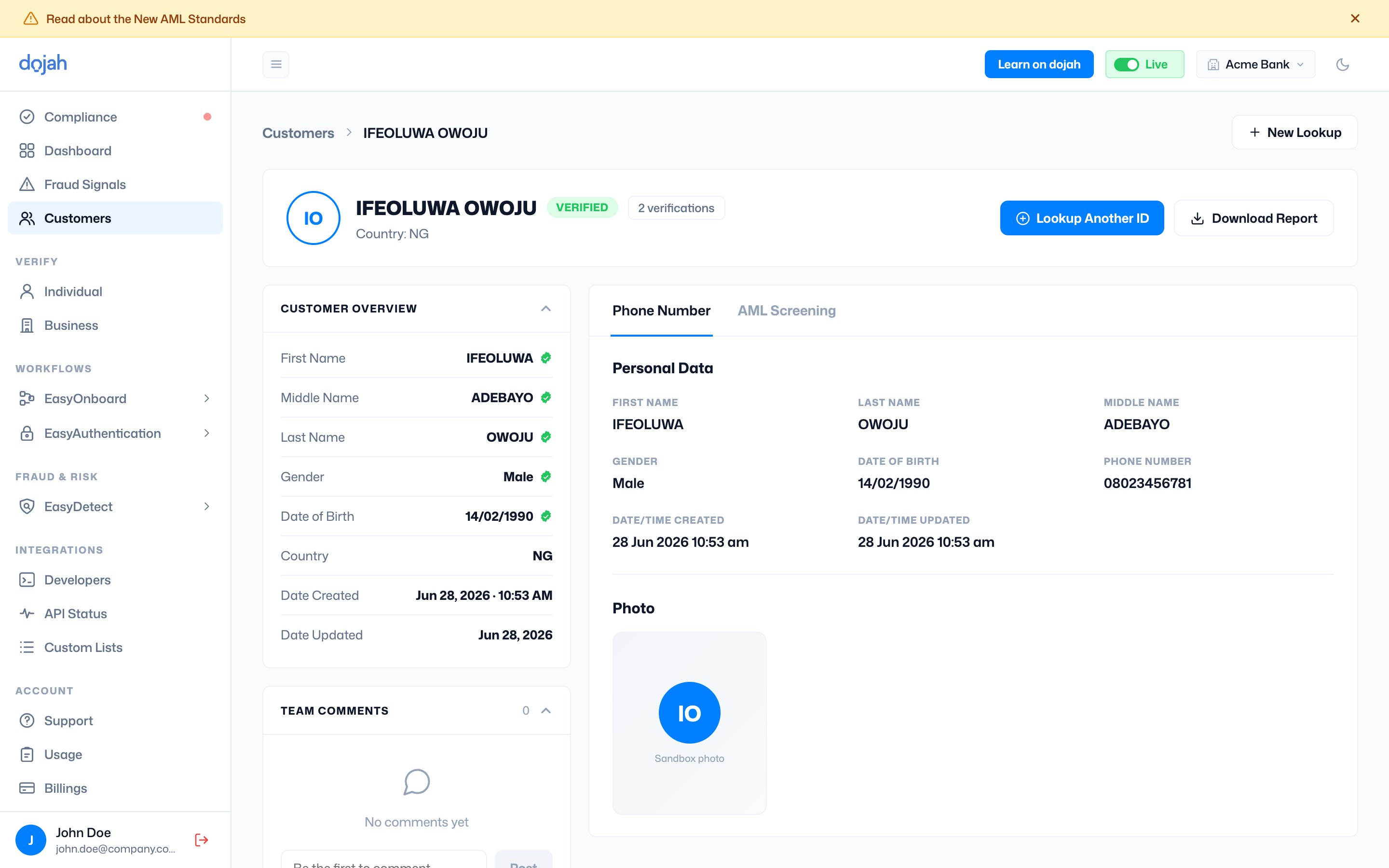 The profile is made up of:
* **Header** — the customer’s name, verified status, number of verifications, and country, plus actions to **Lookup Another ID** (run a further check on them), **Download Report**, or start a **New Lookup**.
* **Customer Overview** — the consolidated identity record (first/middle/last name, gender, date of birth, country, and created/updated dates), with a green seal on each verified field.
* **Tabs** — each data source appears as its own tab (e.g. **Phone Number**, **AML Screening**). The tab shows the data returned for that check — personal data, photo, and more.
* **Team Comments** — leave notes on the customer so your team can collaborate on a case.
## Finding a customer
**Search** by ID or name to jump to a specific person, and narrow the list with the **Date** and **Apps** filters — handy when you run verifications across more than one app.
**Profiles build automatically.** You don’t add customers by hand — each one is created as you run verifications, so the directory grows alongside your activity.
## Frequently asked questions
Profiles are built automatically as you run verifications — you don’t add customers by hand. Each verified individual becomes a customer profile, so the directory grows alongside your activity.
Yes. Search by ID or name to find a specific person, and narrow the list with the **Date** and **Apps** filters — useful when you verify across more than one app.
A **Customer Overview** with the consolidated identity record (verified fields carry a green seal), tabs for each data source (such as Phone Number and AML Screening), team comments, and actions to look up another ID or download a report.
The profile is made up of:
* **Header** — the customer’s name, verified status, number of verifications, and country, plus actions to **Lookup Another ID** (run a further check on them), **Download Report**, or start a **New Lookup**.
* **Customer Overview** — the consolidated identity record (first/middle/last name, gender, date of birth, country, and created/updated dates), with a green seal on each verified field.
* **Tabs** — each data source appears as its own tab (e.g. **Phone Number**, **AML Screening**). The tab shows the data returned for that check — personal data, photo, and more.
* **Team Comments** — leave notes on the customer so your team can collaborate on a case.
## Finding a customer
**Search** by ID or name to jump to a specific person, and narrow the list with the **Date** and **Apps** filters — handy when you run verifications across more than one app.
**Profiles build automatically.** You don’t add customers by hand — each one is created as you run verifications, so the directory grows alongside your activity.
## Frequently asked questions
Profiles are built automatically as you run verifications — you don’t add customers by hand. Each verified individual becomes a customer profile, so the directory grows alongside your activity.
Yes. Search by ID or name to find a specific person, and narrow the list with the **Date** and **Apps** filters — useful when you verify across more than one app.
A **Customer Overview** with the consolidated identity record (verified fields carry a green seal), tabs for each data source (such as Phone Number and AML Screening), team comments, and actions to look up another ID or download a report.