> ## Documentation Index
> Fetch the complete documentation index at: https://docs.dojah.io/llms.txt
> Use this file to discover all available pages before exploring further.
# Dashboard
> Your home screen — a snapshot of your account, with quick links to everything else.
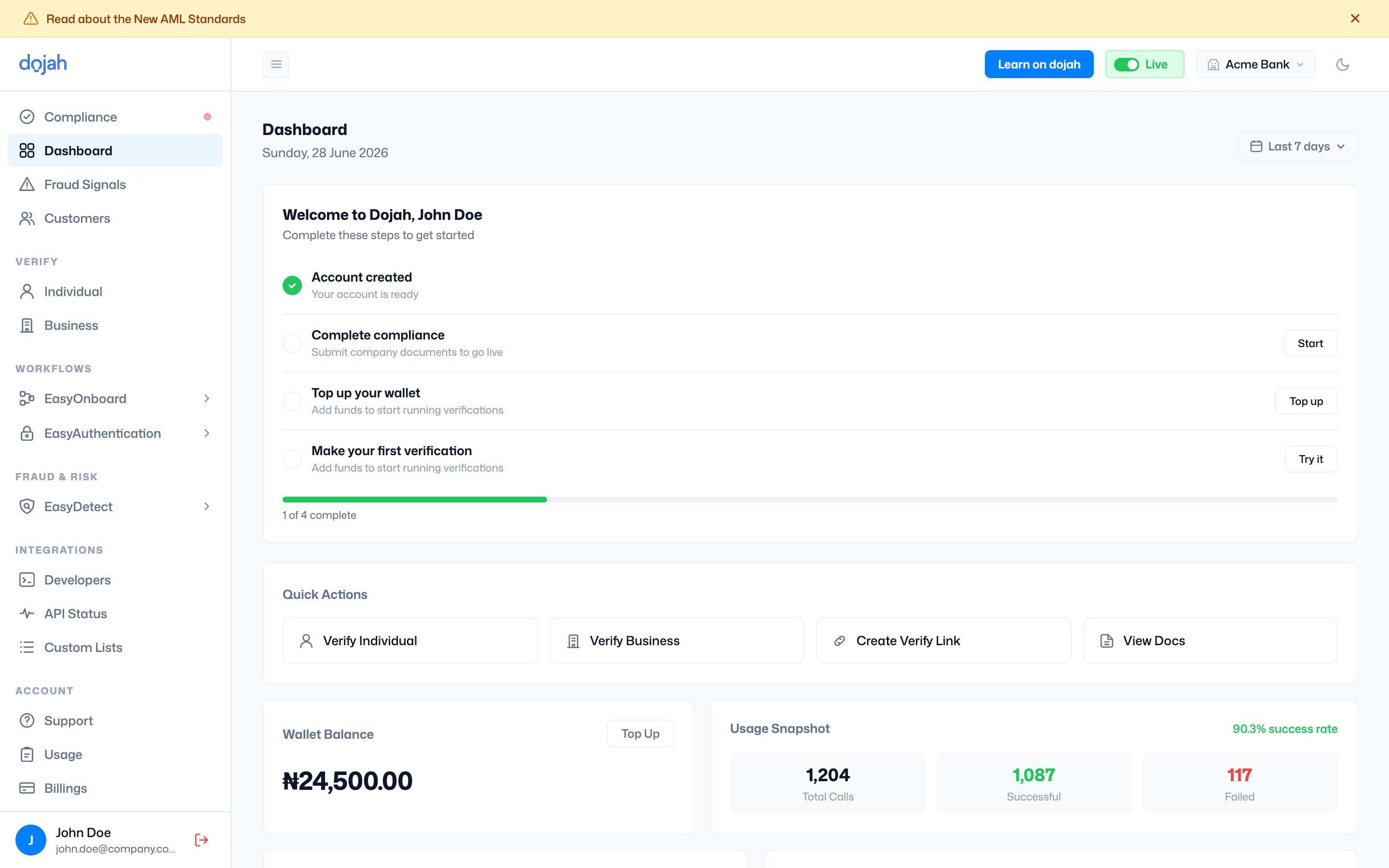
The **Dashboard** is where you land when you sign in. New accounts see a setup checklist; from then on it’s an at-a-glance view of your wallet, usage, recent verifications, and fraud signals. The date filter in the top-right sets the period for the metrics.
 ## Getting started checklist
On a new account, **“Welcome to Dojah”** walks you through the steps to get going, with a progress bar tracking how far you are:
| Step | What it does |
| ---------------------------- | ---------------------------------------------------------------------------------------------------------- |
| Account created | Done as soon as you sign up. |
| Complete compliance | **Start** opens [Compliance](/dashboard-guide/getting-started/compliance) to submit your business details. |
| Top up your wallet | **Top up** opens the wallet so you can [add funds](/dashboard-guide/getting-started/fund-your-wallet). |
| Make your first verification | **Try it** sends you to run your first check. |
## Quick Actions
Shortcuts to the things you do most often:
* **Verify Individual** — run a one-off individual verification.
* **Verify Business** — run a one-off business verification.
* **Create Verify Link** — generate a shareable verification link.
* **View Docs** — jump to the documentation.
## Wallet & usage at a glance
Two cards give you the numbers that matter:
* **Wallet Balance** — your current balance, with a **Top Up** shortcut.
* **Usage Snapshot** — your success rate plus **Total Calls**, **Successful**, and **Failed** counts for the selected period.
## Recent Verifications
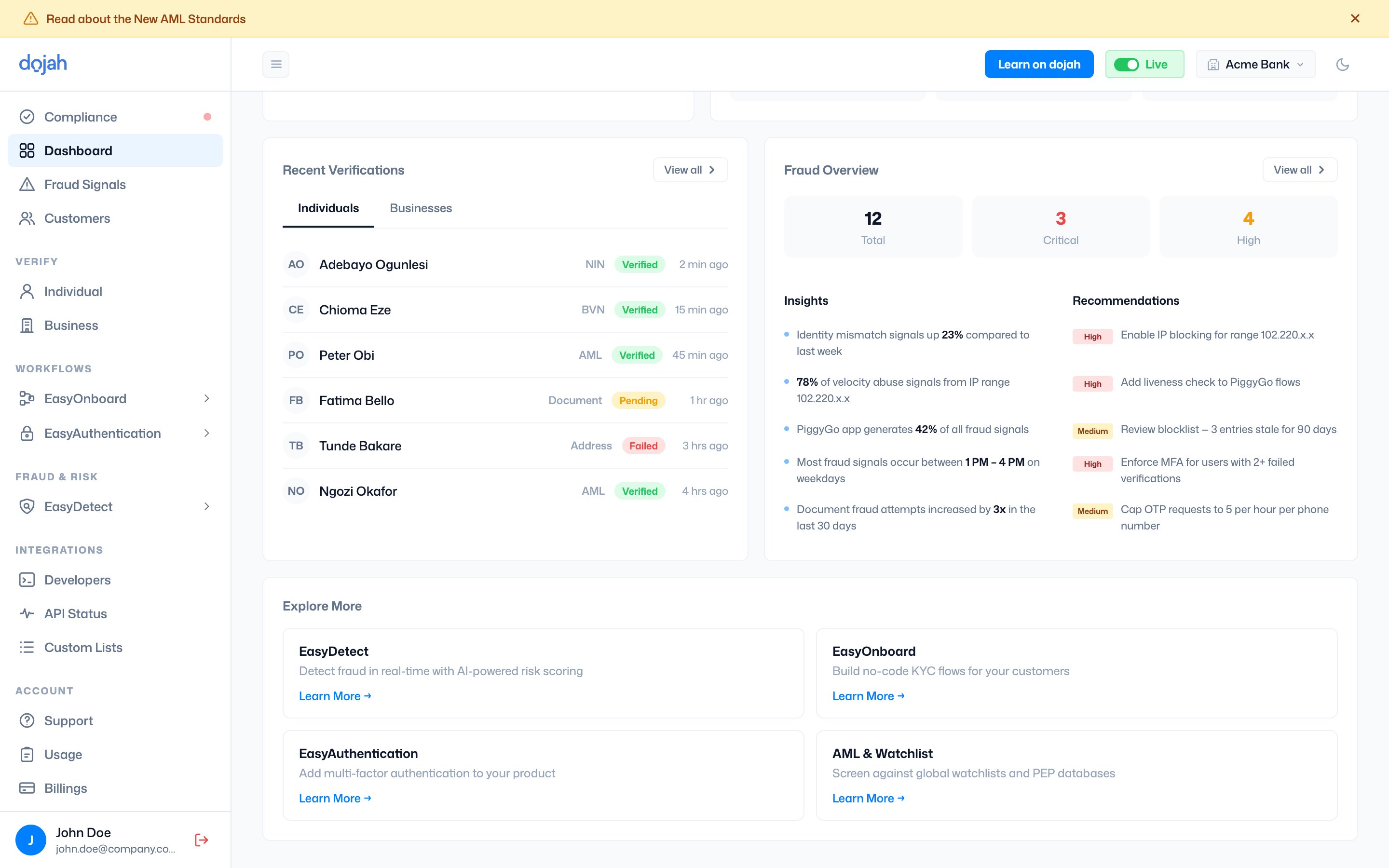
A live list of your latest checks, split into **Individuals** and **Businesses** tabs. Each row shows who was verified, the check type (NIN, BVN, AML, Document, Address…), its status (**Verified**, **Pending**, or **Failed**), and when it ran. **View all** opens the full list.
## Getting started checklist
On a new account, **“Welcome to Dojah”** walks you through the steps to get going, with a progress bar tracking how far you are:
| Step | What it does |
| ---------------------------- | ---------------------------------------------------------------------------------------------------------- |
| Account created | Done as soon as you sign up. |
| Complete compliance | **Start** opens [Compliance](/dashboard-guide/getting-started/compliance) to submit your business details. |
| Top up your wallet | **Top up** opens the wallet so you can [add funds](/dashboard-guide/getting-started/fund-your-wallet). |
| Make your first verification | **Try it** sends you to run your first check. |
## Quick Actions
Shortcuts to the things you do most often:
* **Verify Individual** — run a one-off individual verification.
* **Verify Business** — run a one-off business verification.
* **Create Verify Link** — generate a shareable verification link.
* **View Docs** — jump to the documentation.
## Wallet & usage at a glance
Two cards give you the numbers that matter:
* **Wallet Balance** — your current balance, with a **Top Up** shortcut.
* **Usage Snapshot** — your success rate plus **Total Calls**, **Successful**, and **Failed** counts for the selected period.
## Recent Verifications
A live list of your latest checks, split into **Individuals** and **Businesses** tabs. Each row shows who was verified, the check type (NIN, BVN, AML, Document, Address…), its status (**Verified**, **Pending**, or **Failed**), and when it ran. **View all** opens the full list.
 ## Fraud Overview
A summary of fraud signals across your account — **Total**, **Critical**, and **High** counts, plus **Insights** (notable patterns) and **Recommendations** (suggested actions). **View all** opens **Fraud Signals**.
## Explore More
Cards introducing other products you can add — **EasyDetect**, **EasyOnboard**, **EasyAuthentication**, and **AML & Watchlist** — each with a **Learn More** link.
## Frequently asked questions
The dashboard is your home screen — a snapshot of your account with a setup checklist, wallet balance, usage snapshot, recent verifications, and a fraud overview, plus quick links to everything else.
On a new account, the **Welcome to Dojah** checklist walks you through account creation, completing compliance, topping up your wallet, and making your first verification, with a progress bar.
Yes. Use the date filter in the top-right to set the period — the usage snapshot and metrics update to match.
## Fraud Overview
A summary of fraud signals across your account — **Total**, **Critical**, and **High** counts, plus **Insights** (notable patterns) and **Recommendations** (suggested actions). **View all** opens **Fraud Signals**.
## Explore More
Cards introducing other products you can add — **EasyDetect**, **EasyOnboard**, **EasyAuthentication**, and **AML & Watchlist** — each with a **Learn More** link.
## Frequently asked questions
The dashboard is your home screen — a snapshot of your account with a setup checklist, wallet balance, usage snapshot, recent verifications, and a fraud overview, plus quick links to everything else.
On a new account, the **Welcome to Dojah** checklist walks you through account creation, completing compliance, topping up your wallet, and making your first verification, with a progress bar.
Yes. Use the date filter in the top-right to set the period — the usage snapshot and metrics update to match.