> ## Documentation Index
> Fetch the complete documentation index at: https://docs.dojah.io/llms.txt
> Use this file to discover all available pages before exploring further.
# Custom Lists
> Create reusable named lists, blocked countries, flagged emails, suspicious IPs, that any fraud rule can reference.
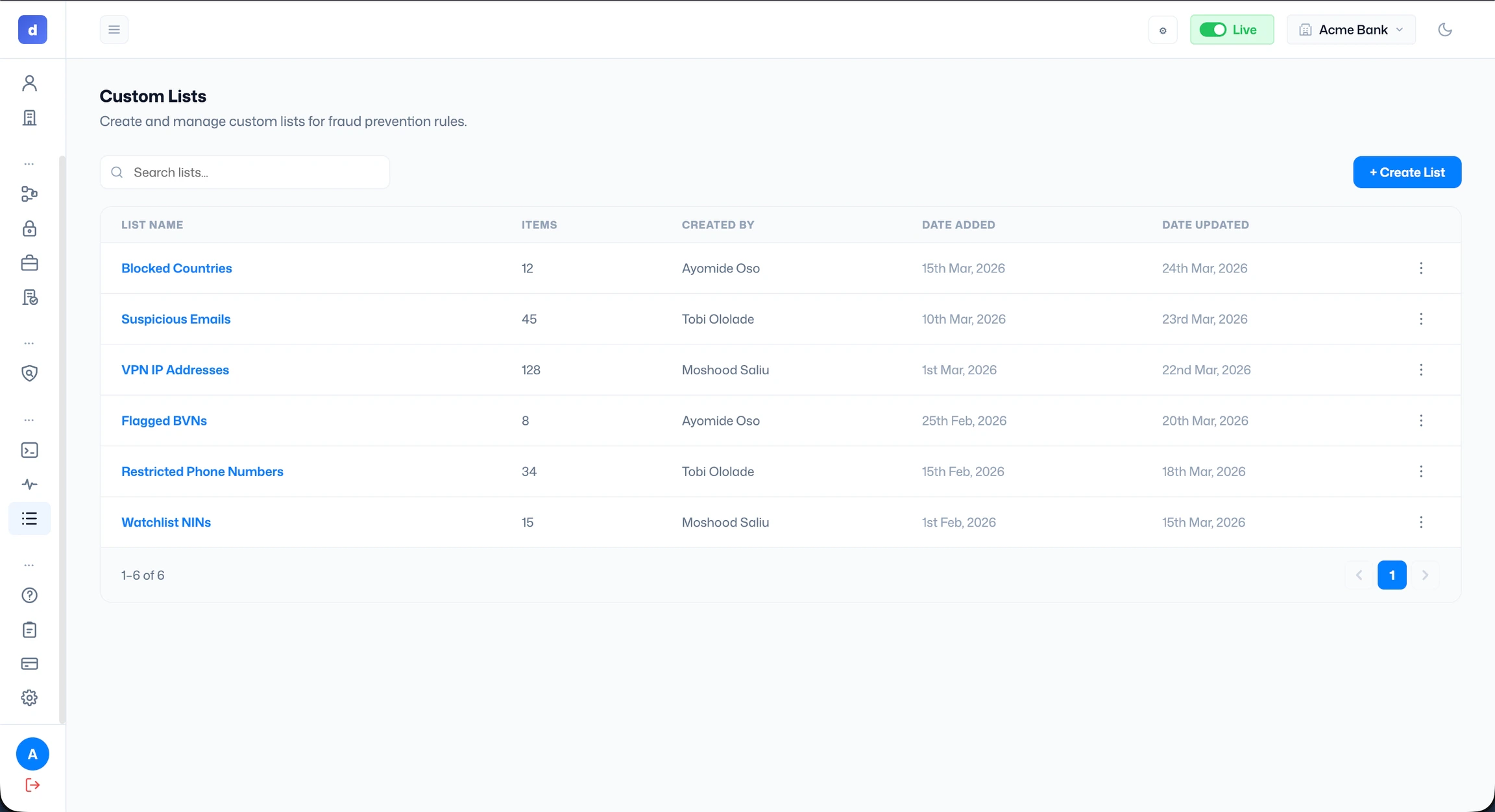
The custom list feature is a named collection of values, like blocked countries, flagged email addresses, or suspicious IP addresses, that your fraud prevention rules can reference. When you update a list, every rule using it automatically reflects the change.
***
**Creating a new list**
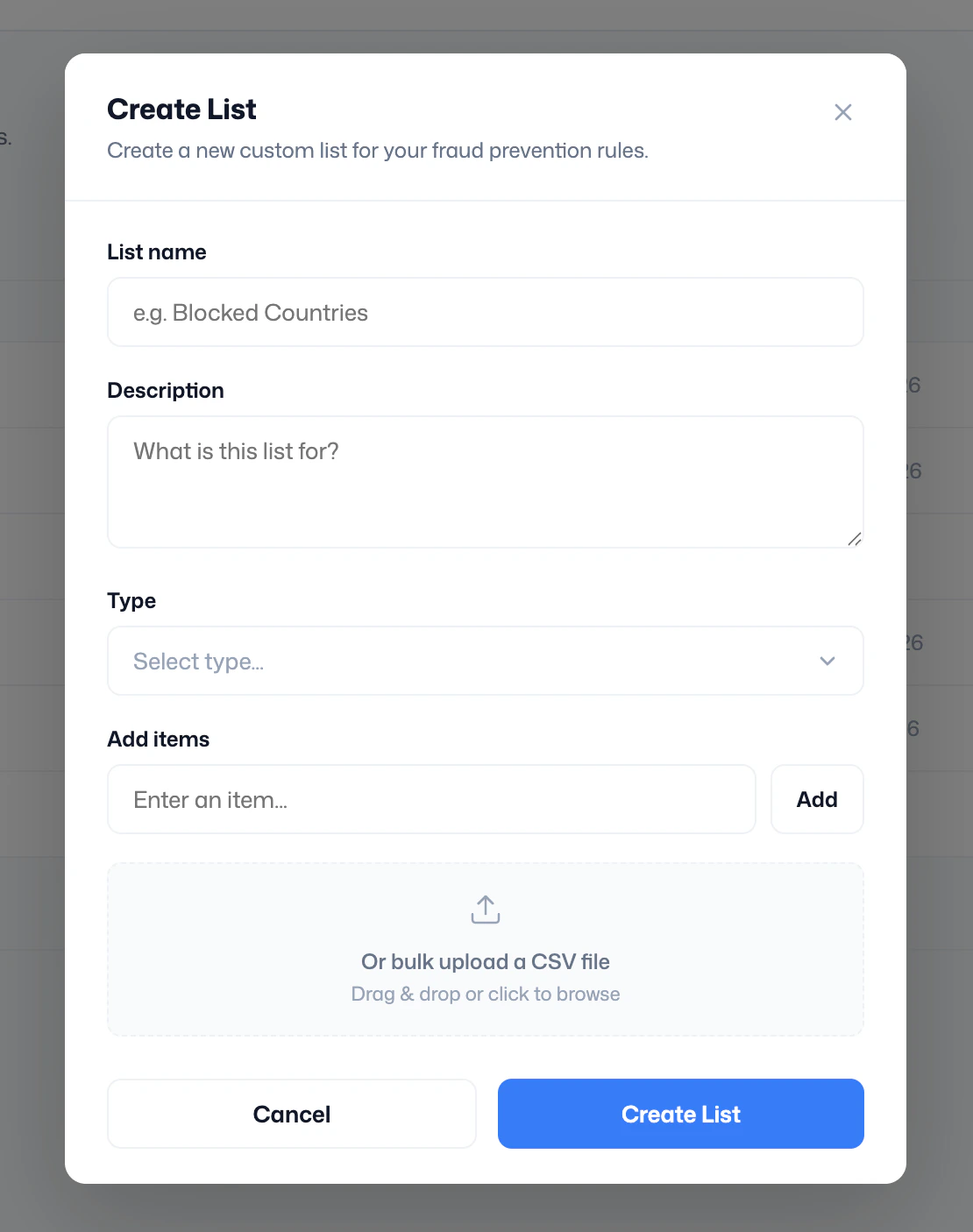
1. Click the '**+ Create List'** button in the top-right corner.
2. Enter a **list name,** something clear your team will recognise, e.g., "Blocked Countries" or "VPN IP Addresses".
3. Add an optional **description** to explain what the list is for and how it's used in your rules.
4. Select a **type** from the dropdown; this determines what kind of values the list accepts.
5. Add items individually using the **Add items** input field and clicking **Add**, or upload a CSV file by dragging it into the upload area or clicking to browse.
6. Click **Create List** to save.
**Type of lists that can be created:**
* **Countries**: country names, e.g. Nigeria, Kenya, India, etc.
* **Email**: email addresses or domains
* **Phone Number**: phone numbers
* **IP Address**: IPv4 or IPv6 addresses
* **BVN**: Bank Verification Numbers
 ***
**Editing an existing list**
1. Find the list in the table on the Custom Lists page.
2. Click the **menu** on the right side of its row.
3. Select **Edit** to open the Edit List modal.
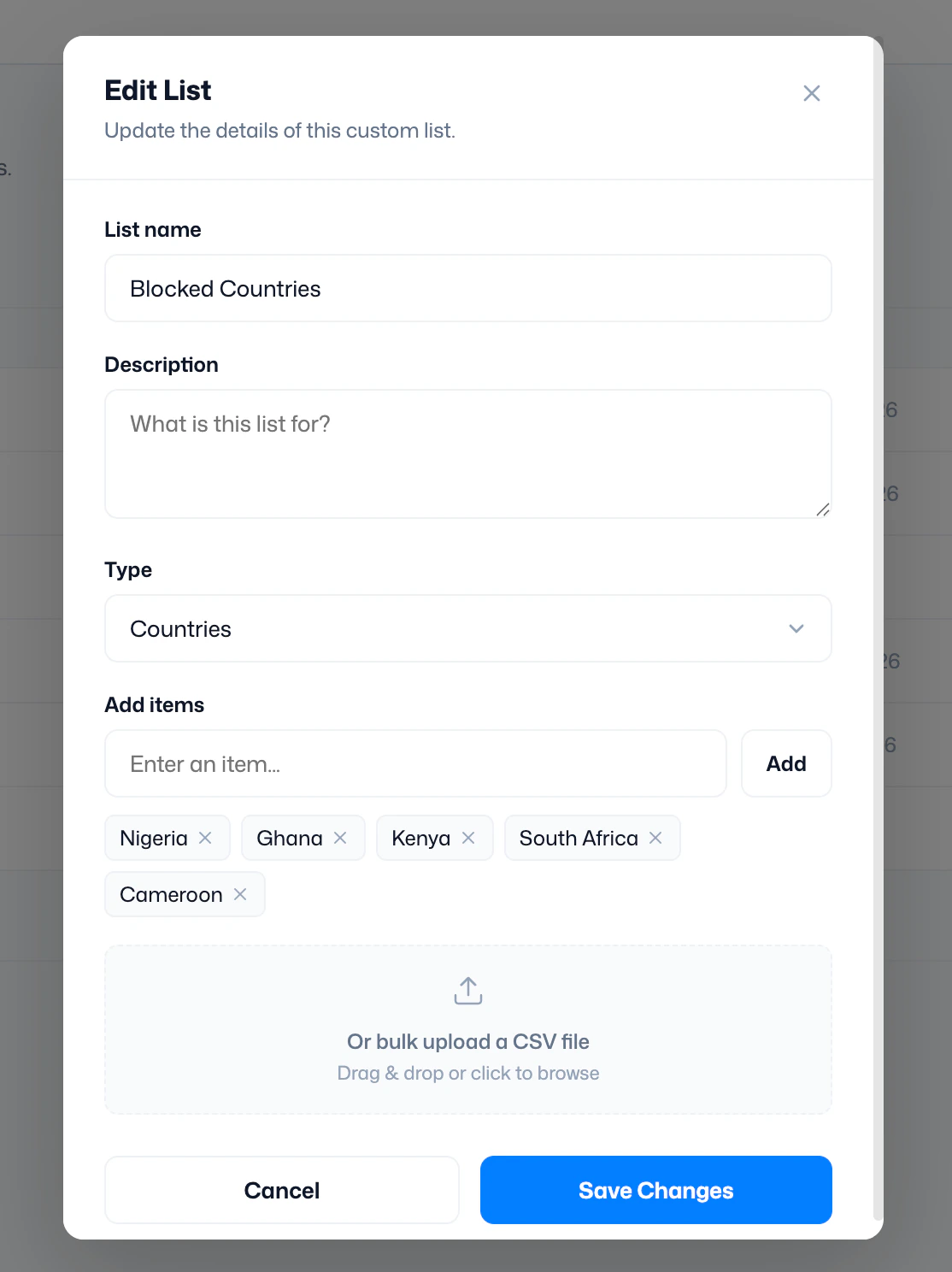
4. Update the name, description, type, or items as needed. Existing items appear as removable tags; click the × next to any item to remove it.
5. Click **Save Changes** to apply.
***
**Editing an existing list**
1. Find the list in the table on the Custom Lists page.
2. Click the **menu** on the right side of its row.
3. Select **Edit** to open the Edit List modal.
4. Update the name, description, type, or items as needed. Existing items appear as removable tags; click the × next to any item to remove it.
5. Click **Save Changes** to apply.