> ## Documentation Index
> Fetch the complete documentation index at: https://docs.dojah.io/llms.txt
> Use this file to discover all available pages before exploring further.
# Business Verification
> Verify and manage business entities and corporate registrations — CAC lookups, directors and shareholders, global company checks, AML screening, and document analysis, one at a time or in bulk.
**Business Verification** (KYB) is where you run checks on a company and review the results. Like Individual Verification, it has three parts: the [history](#verification-history) of every lookup you’ve run, the [New Lookup](#running-a-lookup) form for running a fresh check, and the [result](#reading-a-result) view for each one.
**Business or individual?** Use Business Verification to check a *company* — its registration, directors, and risk. To verify a *person*, use [Individual Verification](/dashboard-guide/verify/individual-verification) (KYC) instead.
## Verification types
Dojah offers five kinds of business check. Which ones are available depends on the **country** you choose — Global Check, AML Screening, and Document Analysis work everywhere, while the CAC lookups are specific to Nigeria.
| Type | What it does | Where |
| ----------------- | ------------------------------------------------------------------------------------------ | ---------------- |
| CAC Basic | Confirms a company’s CAC registration — name, RC number, status, and registered address. | 🇳🇬 Nigeria |
| CAC Advanced | Everything in CAC Basic, plus the company’s **directors** and **shareholders**. | 🇳🇬 Nigeria |
| Global Check | Looks up a company in global business registries by name. | 🌍 All countries |
| AML Screening | Screens a business against global watchlists, sanctions, PEP, and adverse-media databases. | 🌍 All countries |
| Document Analysis | Reads and validates an uploaded business document (front and back). | 🌍 All countries |
## Running a lookup
Select **+ New Lookup** to open the form. Choose your **Country**, the **App Name** to record the lookup under, and the **Verification Type** — the form then shows the fields that check needs. For a CAC lookup, you enter the **Company Name** and/or **RC Number**.
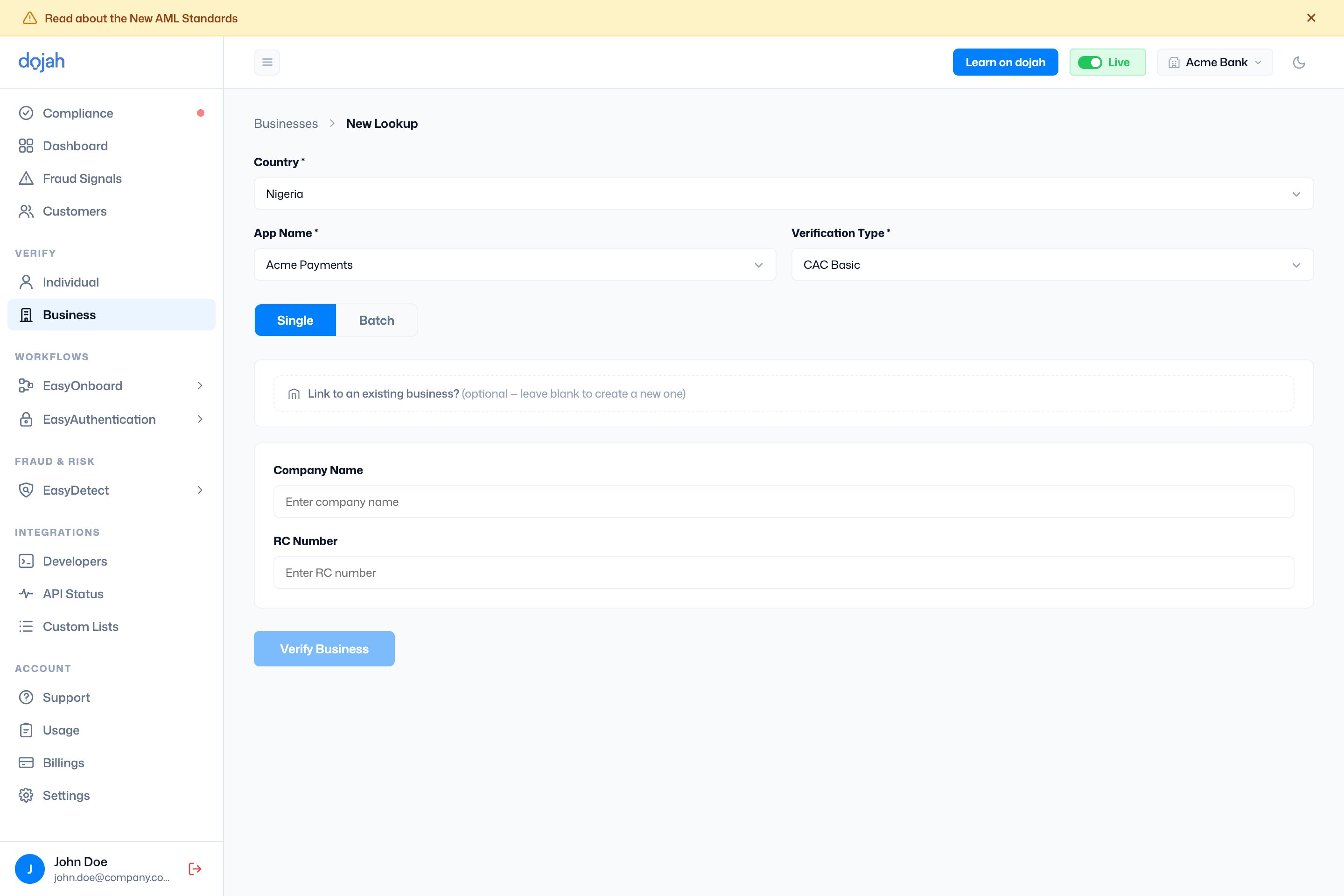 | Step | What it does |
| ---------------------------- | ----------------------------------------------------------------------------------------------------------------------------------- |
| Country | The country whose registries you’re checking. This decides which verification types are available. |
| App Name | The app the lookup is recorded under. |
| Verification Type | Which of the five checks to run. The fields below change to match. |
| Single / Batch | **Single** runs one lookup; **Batch** lets you upload a CSV to run many at once (give the batch a name so you can find them later). |
| Link to an existing business | Optional. Attach this result to a business you already have — leave blank to create a new one. |
What you provide depends on the check: **CAC** lookups take a company name or RC number; **Global Check** takes a company name; **AML Screening** takes the organisation name, registration number, and risk categories; and **Document Analysis** takes an uploaded document. The submit button reads **Verify Business** (or **Upload & Run** for a batch).
**Verifying many businesses at once.** Switch to **Batch**, name the batch, and upload a CSV (a template is provided). Track batch progress from the **Batches** button on the history view.
## Verification history
The default view lists everything you’ve run, split into three tabs — one per result type. Each tab opens with its own headline counts and a table you can **Search**, **Filter**, and **Export**.
| Step | What it does |
| ---------------------------- | ----------------------------------------------------------------------------------------------------------------------------------- |
| Country | The country whose registries you’re checking. This decides which verification types are available. |
| App Name | The app the lookup is recorded under. |
| Verification Type | Which of the five checks to run. The fields below change to match. |
| Single / Batch | **Single** runs one lookup; **Batch** lets you upload a CSV to run many at once (give the batch a name so you can find them later). |
| Link to an existing business | Optional. Attach this result to a business you already have — leave blank to create a new one. |
What you provide depends on the check: **CAC** lookups take a company name or RC number; **Global Check** takes a company name; **AML Screening** takes the organisation name, registration number, and risk categories; and **Document Analysis** takes an uploaded document. The submit button reads **Verify Business** (or **Upload & Run** for a batch).
**Verifying many businesses at once.** Switch to **Batch**, name the batch, and upload a CSV (a template is provided). Track batch progress from the **Batches** button on the history view.
## Verification history
The default view lists everything you’ve run, split into three tabs — one per result type. Each tab opens with its own headline counts and a table you can **Search**, **Filter**, and **Export**.
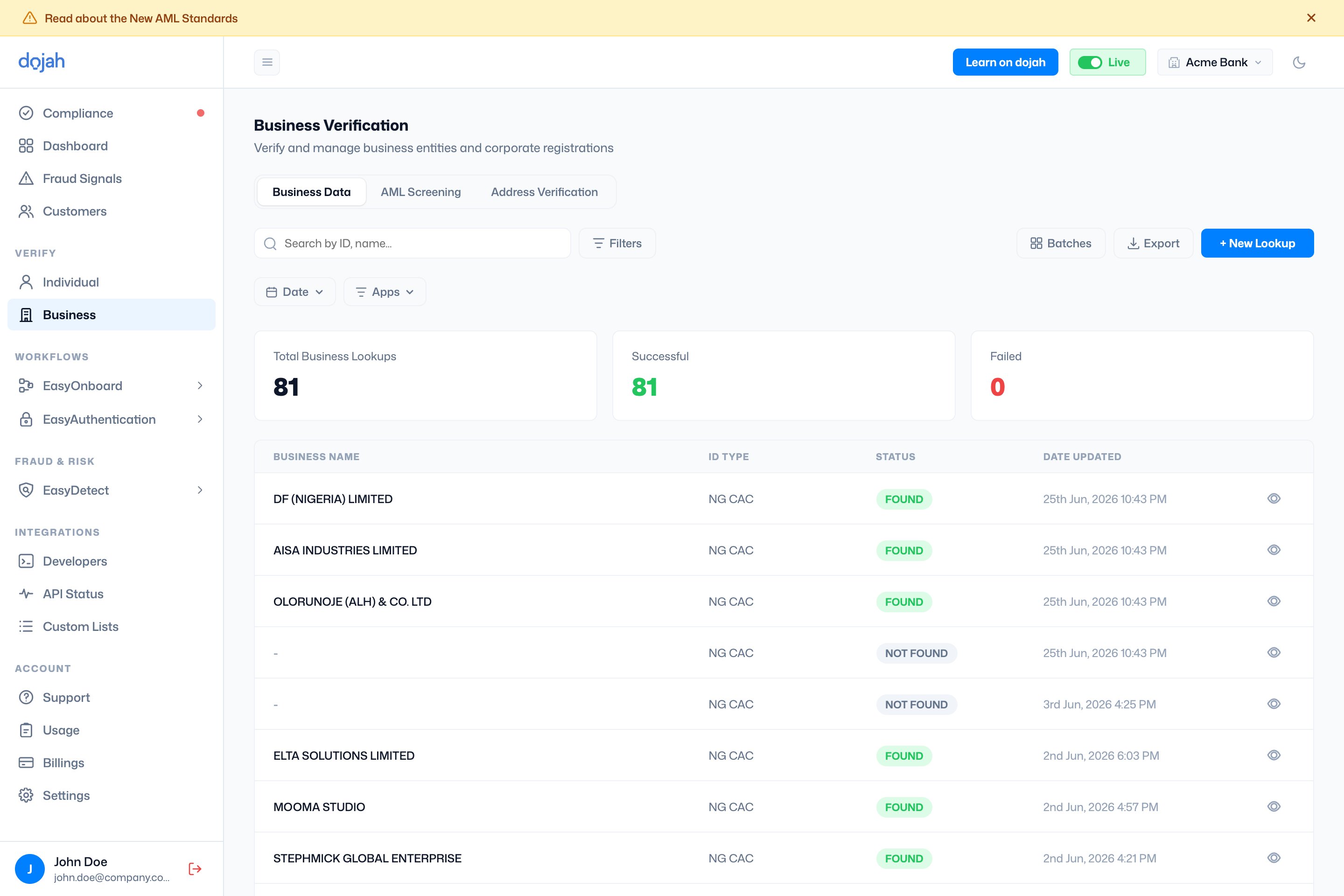 | Tab | Lists | Key columns |
| -------------------- | ----------------------------- | --------------------------------------------------------- |
| Business Data | CAC and Global Check lookups. | Business Name · ID Type · Status · Date Updated |
| AML Screening | Business AML screenings. | Name · Risk Level · Result · Status · Entity · Monitoring |
| Address Verification | Address checks. | Reference · Name · Phone Number · Status · Date Created |
Status reads differently per check — a business lookup shows **Found** or **Not Found**; an AML case shows its match status and risk level; an address check moves through **Pending**, **Completed**, **Failed**, or **Cancelled**.
## Reading a result
Open a verification to see the full result. The header shows the company’s name, an overall status (**Verified**, **Pending**, or **All Failed**), its reference, and how many checks are attached. Down the left is a summary sidebar; the main panel has a tab per verification.
| Tab | Lists | Key columns |
| -------------------- | ----------------------------- | --------------------------------------------------------- |
| Business Data | CAC and Global Check lookups. | Business Name · ID Type · Status · Date Updated |
| AML Screening | Business AML screenings. | Name · Risk Level · Result · Status · Entity · Monitoring |
| Address Verification | Address checks. | Reference · Name · Phone Number · Status · Date Created |
Status reads differently per check — a business lookup shows **Found** or **Not Found**; an AML case shows its match status and risk level; an address check moves through **Pending**, **Completed**, **Failed**, or **Cancelled**.
## Reading a result
Open a verification to see the full result. The header shows the company’s name, an overall status (**Verified**, **Pending**, or **All Failed**), its reference, and how many checks are attached. Down the left is a summary sidebar; the main panel has a tab per verification.
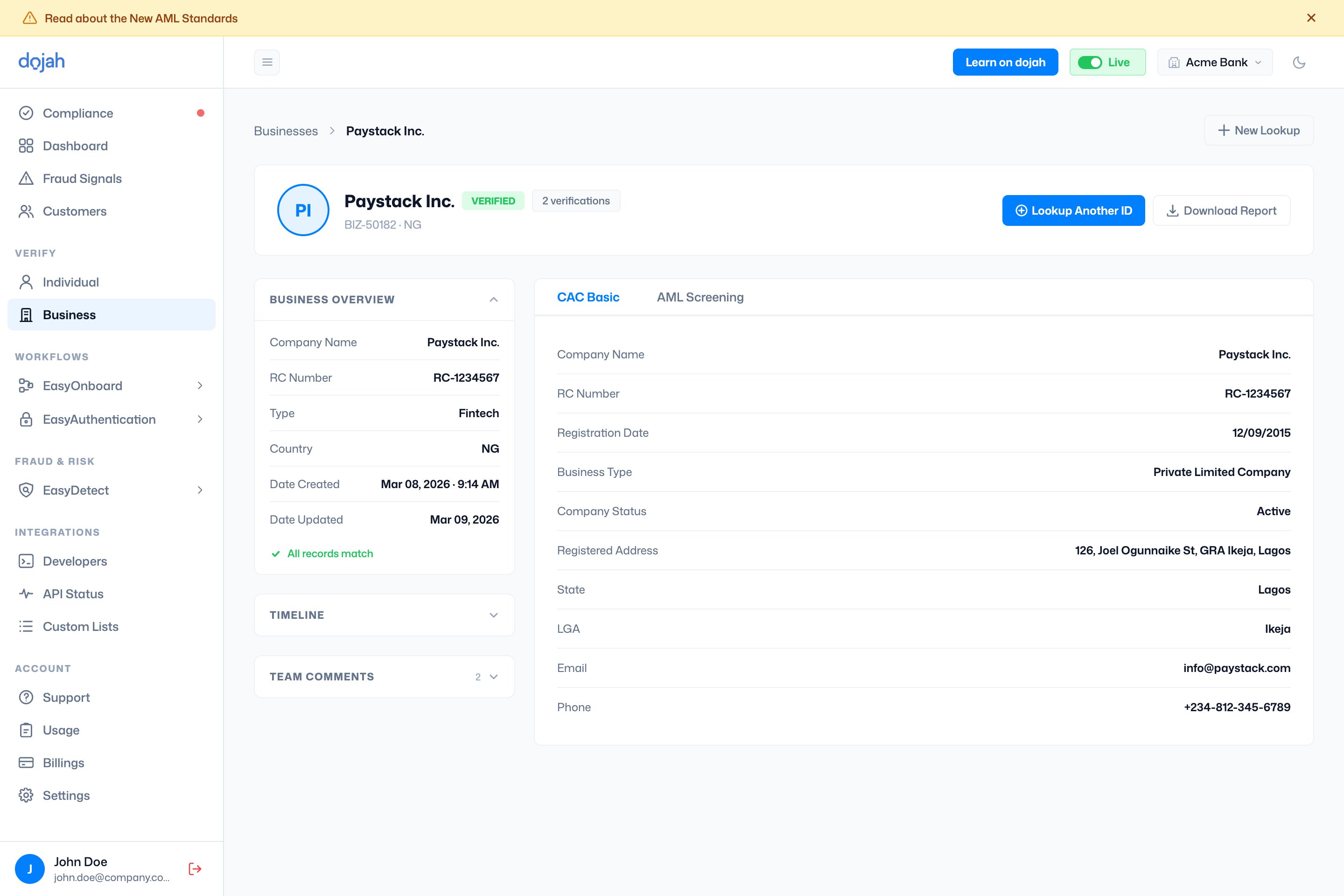 | Sidebar section | What it shows |
| ----------------- | -------------------------------------------------------------------------------------------------------------------------------------------------------------- |
| Business Overview | The company details gathered — name, RC number, type, country, dates — with a check that flags where they match or differ across the business’s verifications. |
| Case Info | For AML Screening only: the case ID, match score, risk level, and assignee. Risk level and assignee are editable so you can work the case. |
| Timeline | A step-by-step log of how the verification ran. |
| Team Comments | Notes from your team — add your own to keep a record on the case. |
Each **verification tab** shows that check’s data. A **CAC Advanced** result adds **Directors** and **Shareholders** tables; **AML Screening** lists any watchlist matches; **Document Analysis** shows the uploaded document. A failed check shows the error and a retry option instead.
Use **Download Report** to export the result as a PDF — you can choose which verifications to include — or **Lookup Another ID** to run a new check for the same business.
## Frequently asked questions
Go to **Verify → Business** and select **+ New Lookup**. Choose the country, the app to record it under, and the verification type, then enter the company’s details (for a CAC lookup, its name or RC number) and select **Verify Business**. The result appears in your history and in the business’s profile.
**CAC Basic** confirms a company’s core registration — name, RC number, status, and registered address. **CAC Advanced** returns all of that *plus* the company’s **directors** and **shareholders**, so you can see who owns and runs the business.
Yes. **Global Check**, **AML Screening**, and **Document Analysis** are available in every country. The **CAC** lookups are specific to Nigeria, since they query the Corporate Affairs Commission registry.
On the New Lookup form, switch from **Single** to **Batch**, give the batch a name, and upload a CSV (a template is provided). Each batch runs as a group, and you can track progress and find past uploads from the **Batches** button on the history view.
Yes — run an **AML Screening** check. It screens the organisation against global sanctions, PEP, and adverse-media databases, and returns any matches with a risk level you can review and assign on the result’s **Case Info** panel.
| Sidebar section | What it shows |
| ----------------- | -------------------------------------------------------------------------------------------------------------------------------------------------------------- |
| Business Overview | The company details gathered — name, RC number, type, country, dates — with a check that flags where they match or differ across the business’s verifications. |
| Case Info | For AML Screening only: the case ID, match score, risk level, and assignee. Risk level and assignee are editable so you can work the case. |
| Timeline | A step-by-step log of how the verification ran. |
| Team Comments | Notes from your team — add your own to keep a record on the case. |
Each **verification tab** shows that check’s data. A **CAC Advanced** result adds **Directors** and **Shareholders** tables; **AML Screening** lists any watchlist matches; **Document Analysis** shows the uploaded document. A failed check shows the error and a retry option instead.
Use **Download Report** to export the result as a PDF — you can choose which verifications to include — or **Lookup Another ID** to run a new check for the same business.
## Frequently asked questions
Go to **Verify → Business** and select **+ New Lookup**. Choose the country, the app to record it under, and the verification type, then enter the company’s details (for a CAC lookup, its name or RC number) and select **Verify Business**. The result appears in your history and in the business’s profile.
**CAC Basic** confirms a company’s core registration — name, RC number, status, and registered address. **CAC Advanced** returns all of that *plus* the company’s **directors** and **shareholders**, so you can see who owns and runs the business.
Yes. **Global Check**, **AML Screening**, and **Document Analysis** are available in every country. The **CAC** lookups are specific to Nigeria, since they query the Corporate Affairs Commission registry.
On the New Lookup form, switch from **Single** to **Batch**, give the batch a name, and upload a CSV (a template is provided). Each batch runs as a group, and you can track progress and find past uploads from the **Batches** button on the history view.
Yes — run an **AML Screening** check. It screens the organisation against global sanctions, PEP, and adverse-media databases, and returns any matches with a risk level you can review and assign on the result’s **Case Info** panel.