> ## Documentation Index
> Fetch the complete documentation index at: https://docs.dojah.io/llms.txt
> Use this file to discover all available pages before exploring further.
# Face Authentication
> Organize registered faces into collections and review every Register, Authenticate, and Compare check from the dashboard.
**Face Authentication** lets you confirm who someone is from a photo, and keep a record of every check. You can add a person’s photo to your own records, check a new photo against one already on file, or compare two new photos against each other. Every check is logged so you can look it up later.
**Checks run through the API.** There is no screen for uploading a photo and getting a Register, Authenticate, or Compare result back. That work happens in your integration — see [Face authentication](/api-reference/face-auth/enroll-user). The dashboard is where you organize collections beforehand and review what happened afterward.
## What you can do
Each action is logged separately, and every check is tagged with a **reference ID** — a unique label you supply, or that the system generates, so you can find that exact record later.
| Action | What it does | When you’d use it |
| - | - | - |
| Register (Enrol) | Adds a person’s photo to your records, under a named collection and a reference ID. | Onboarding a customer or employee whose face you want on file for later checks. |
| Authenticate (Verify) | Compares a new photo against the photo already on file for a specific person, and returns a match or no-match result with a confidence score. | Confirming a returning user is the same person who was registered, such as at login or before a sensitive action. |
| Compare (Match) | Checks two new photos against each other. Neither photo needs to be on file. | A one-off check, for example confirming a submitted photo matches an ID photo, with nothing saved to a person’s record first. |
## Where to find it
Open **Verify → Face Authentication** in the sidebar, next to Individual and Business. It is available on every account — there is nothing to request or turn on.
The section has two pages: [Collections](#collections) and [Face Logs](#face-logs).
## Collections
A **collection** is a named group of registered faces. You might keep one collection for customers and another for staff. A person’s photo lives inside a collection once it has been registered.
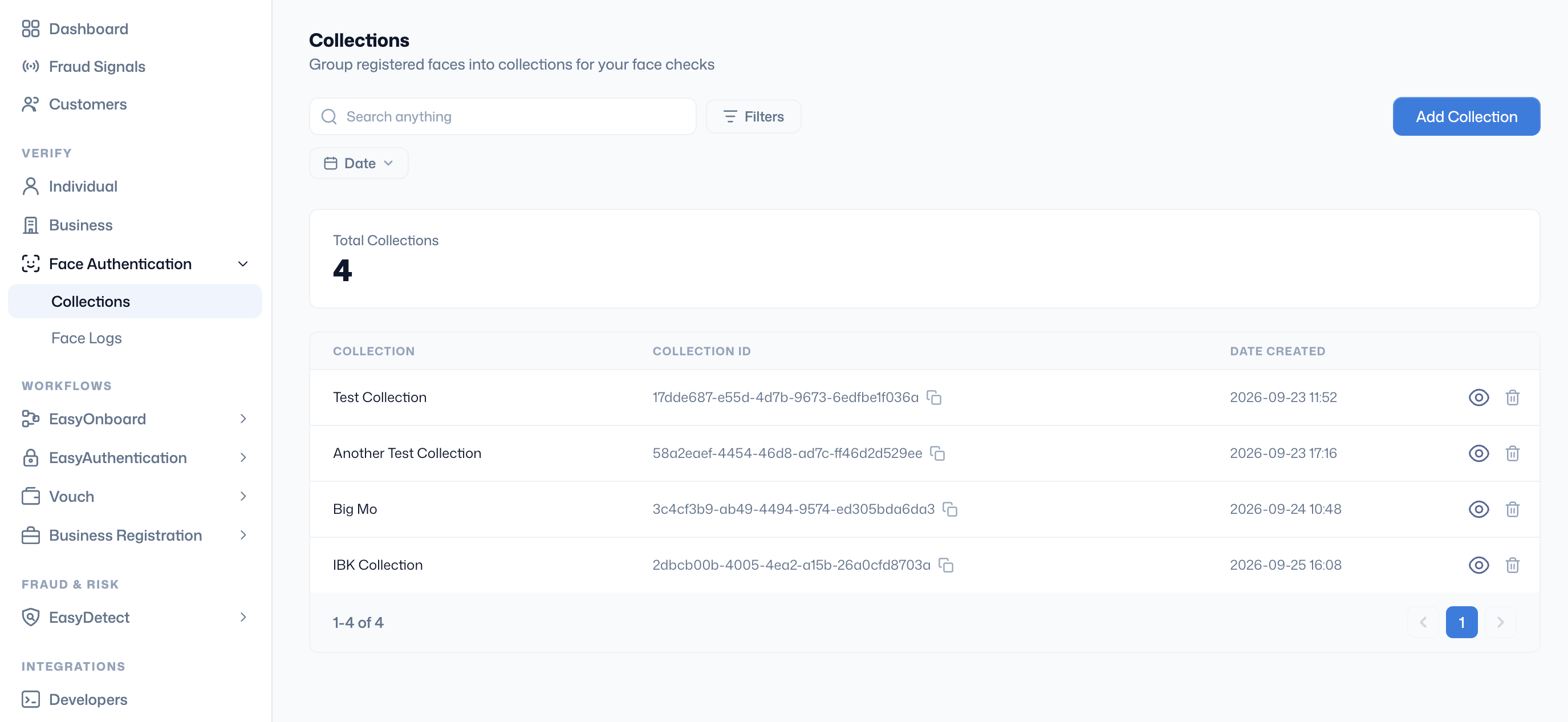 | What you can do | How |
| - | - |
| Create a collection | Select **Add Collection**. The only field required is a name. |
| Find a collection | Search by name, or filter by date. |
| See how many you have | The **Total Collections** count sits above the table. |
| Open a collection | A row shows when it was created, its ID, and how many faces are registered in it. |
| Delete a collection | Remove a collection you no longer need. |
Create collections from the dashboard, then register faces into them with [Enrol a user](/api-reference/face-auth/enroll-user).
## Face Logs
**Face Logs** is a read-only history of every check on the account: Register, Authenticate, and Compare.
| What you can do | How |
| - | - |
| Create a collection | Select **Add Collection**. The only field required is a name. |
| Find a collection | Search by name, or filter by date. |
| See how many you have | The **Total Collections** count sits above the table. |
| Open a collection | A row shows when it was created, its ID, and how many faces are registered in it. |
| Delete a collection | Remove a collection you no longer need. |
Create collections from the dashboard, then register faces into them with [Enrol a user](/api-reference/face-auth/enroll-user).
## Face Logs
**Face Logs** is a read-only history of every check on the account: Register, Authenticate, and Compare.
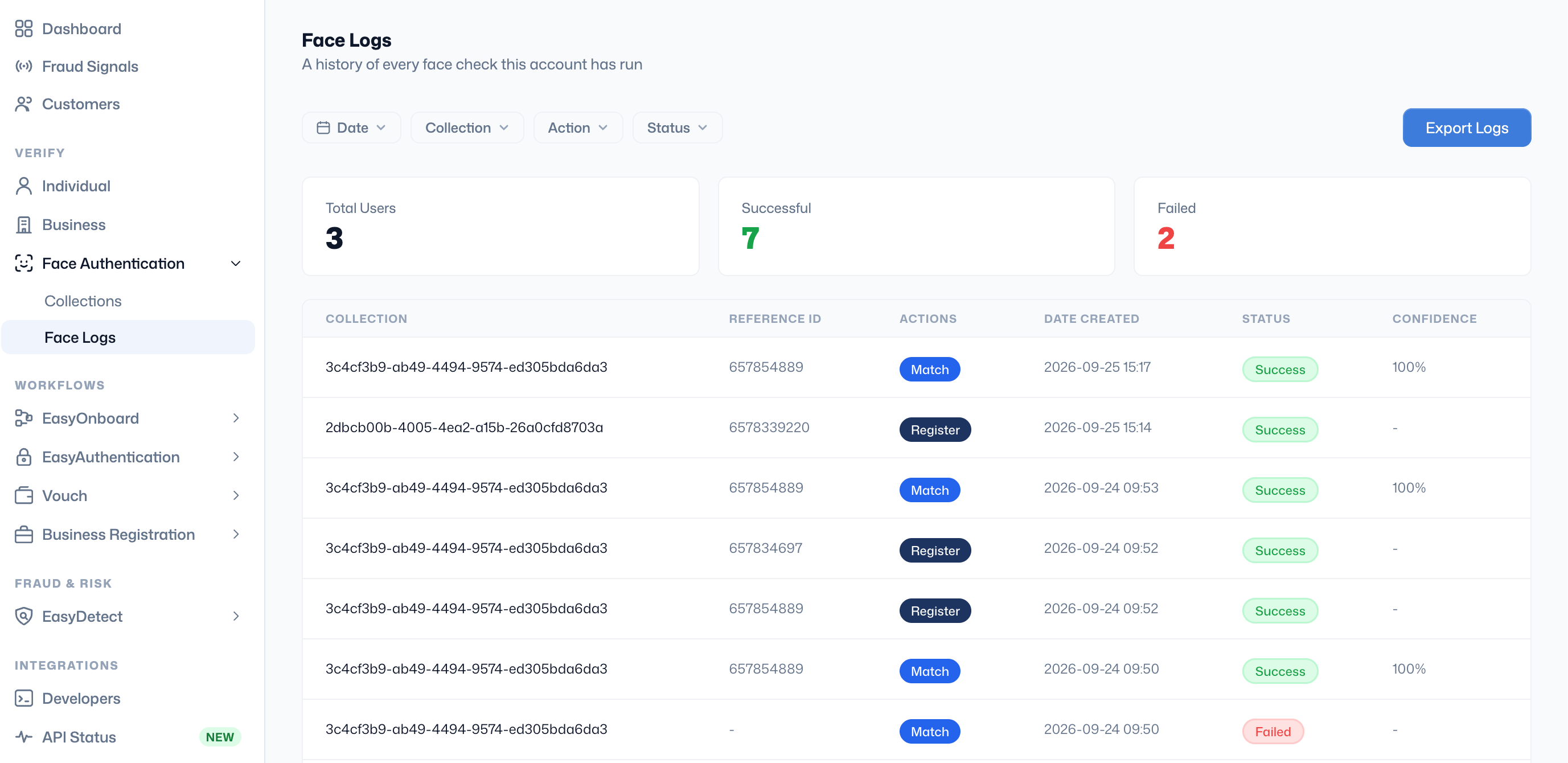 | What you see | What it means |
| - | - |
| Total checks, Successful, and Failed | Headline counts at the top of the page. |
| Collection | The collection the check belongs to, where one applies. Compare has none. |
| Reference ID | The label for that specific check or person. |
| Action | **Register**, **Authenticate**, or **Compare**. |
| Date Created | When the check ran. |
| Status | Whether the check completed successfully or failed. |
| Confidence | How sure the system is of an Authenticate or Compare decision. Register has no score. |
Filter by date, collection, action, or status. Search for a specific check by its reference ID, or **Export Log** to download the history as a file.
## Collections and reference IDs
A **reference ID** is the unique label on one person’s record inside a collection — for example a customer ID or account number you already use. [Authenticate a user](/api-reference/face-auth/authenticate-user) looks the person up by that reference ID inside a collection to find the photo it should compare against.
[Compare two faces](/api-reference/face-auth/face-compare) does not use a collection, because neither photo needs to be registered first. The check still carries a reference ID so you can find it in Face Logs later.
## How a returning-user check works
1. **Register a person.** Submit a photo with a collection name and a reference ID. That photo is now on file.
2. **The person comes back** — to log in, complete a transaction, or pass a checkpoint.
3. **Submit a new photo** with the same reference ID and collection used at registration.
4. **Face Authentication compares the two** and returns a match or no-match result, plus a confidence score.
5. **Act on the result** — let the person through, flag the account, or ask for another check. The check is now in Face Logs.
**One-off checks.** Use Compare when you only need to know whether two photos are the same person, and you don’t want either photo stored in a collection.
## Reading a result
| Term | What it means |
| - | - |
| Match | The two photos — or the new photo and the one on file — are judged to be the same person. |
| No match | The two photos are judged to be different people. The check still completed successfully. |
| Confidence score | How sure the system is about its match or no-match decision. It applies to Authenticate and Compare. Register has nothing to compare against yet, so it has no score. |
| Check failed | The check could not run to completion — for example because no photo was submitted, or the record it needed could not be found. This is separate from a check that ran and returned no match. |
## Frequently asked questions
From your own integration, through the API. **Register** uses [Enrol a user](/api-reference/face-auth/enroll-user), **Authenticate** uses [Authenticate a user](/api-reference/face-auth/authenticate-user), and **Compare** uses [Compare two faces](/api-reference/face-auth/face-compare). The dashboard is for creating collections and reviewing Face Logs.
A named group of registered faces — for example one collection for customers and another for staff. Create one from **Verify → Face Authentication → Collections** with **Add Collection**. You only need a name.
The unique label on one person’s record inside a collection, such as a customer ID you already use. Authenticate uses it to find the photo on file. Compare still carries a reference ID so the check can be found in Face Logs, even though it does not use a collection.
**No match** means the check ran and the two photos were judged to be different people. **Failed** means the check could not finish — for example a photo was missing, or the record could not be found.
This documentation is built and hosted on [Mintlify](https://mintlify.com), a developer documentation platform.
| What you see | What it means |
| - | - |
| Total checks, Successful, and Failed | Headline counts at the top of the page. |
| Collection | The collection the check belongs to, where one applies. Compare has none. |
| Reference ID | The label for that specific check or person. |
| Action | **Register**, **Authenticate**, or **Compare**. |
| Date Created | When the check ran. |
| Status | Whether the check completed successfully or failed. |
| Confidence | How sure the system is of an Authenticate or Compare decision. Register has no score. |
Filter by date, collection, action, or status. Search for a specific check by its reference ID, or **Export Log** to download the history as a file.
## Collections and reference IDs
A **reference ID** is the unique label on one person’s record inside a collection — for example a customer ID or account number you already use. [Authenticate a user](/api-reference/face-auth/authenticate-user) looks the person up by that reference ID inside a collection to find the photo it should compare against.
[Compare two faces](/api-reference/face-auth/face-compare) does not use a collection, because neither photo needs to be registered first. The check still carries a reference ID so you can find it in Face Logs later.
## How a returning-user check works
1. **Register a person.** Submit a photo with a collection name and a reference ID. That photo is now on file.
2. **The person comes back** — to log in, complete a transaction, or pass a checkpoint.
3. **Submit a new photo** with the same reference ID and collection used at registration.
4. **Face Authentication compares the two** and returns a match or no-match result, plus a confidence score.
5. **Act on the result** — let the person through, flag the account, or ask for another check. The check is now in Face Logs.
**One-off checks.** Use Compare when you only need to know whether two photos are the same person, and you don’t want either photo stored in a collection.
## Reading a result
| Term | What it means |
| - | - |
| Match | The two photos — or the new photo and the one on file — are judged to be the same person. |
| No match | The two photos are judged to be different people. The check still completed successfully. |
| Confidence score | How sure the system is about its match or no-match decision. It applies to Authenticate and Compare. Register has nothing to compare against yet, so it has no score. |
| Check failed | The check could not run to completion — for example because no photo was submitted, or the record it needed could not be found. This is separate from a check that ran and returned no match. |
## Frequently asked questions
From your own integration, through the API. **Register** uses [Enrol a user](/api-reference/face-auth/enroll-user), **Authenticate** uses [Authenticate a user](/api-reference/face-auth/authenticate-user), and **Compare** uses [Compare two faces](/api-reference/face-auth/face-compare). The dashboard is for creating collections and reviewing Face Logs.
A named group of registered faces — for example one collection for customers and another for staff. Create one from **Verify → Face Authentication → Collections** with **Add Collection**. You only need a name.
The unique label on one person’s record inside a collection, such as a customer ID you already use. Authenticate uses it to find the photo on file. Compare still carries a reference ID so the check can be found in Face Logs, even though it does not use a collection.
**No match** means the check ran and the two photos were judged to be different people. **Failed** means the check could not finish — for example a photo was missing, or the record could not be found.
This documentation is built and hosted on [Mintlify](https://mintlify.com), a developer documentation platform.