
The support chat
The page is a single conversation with Dojah Support. Your messages line up on the right; replies from the team appear on the left, each labelled with the agent’s name. Date stamps mark when each message was sent.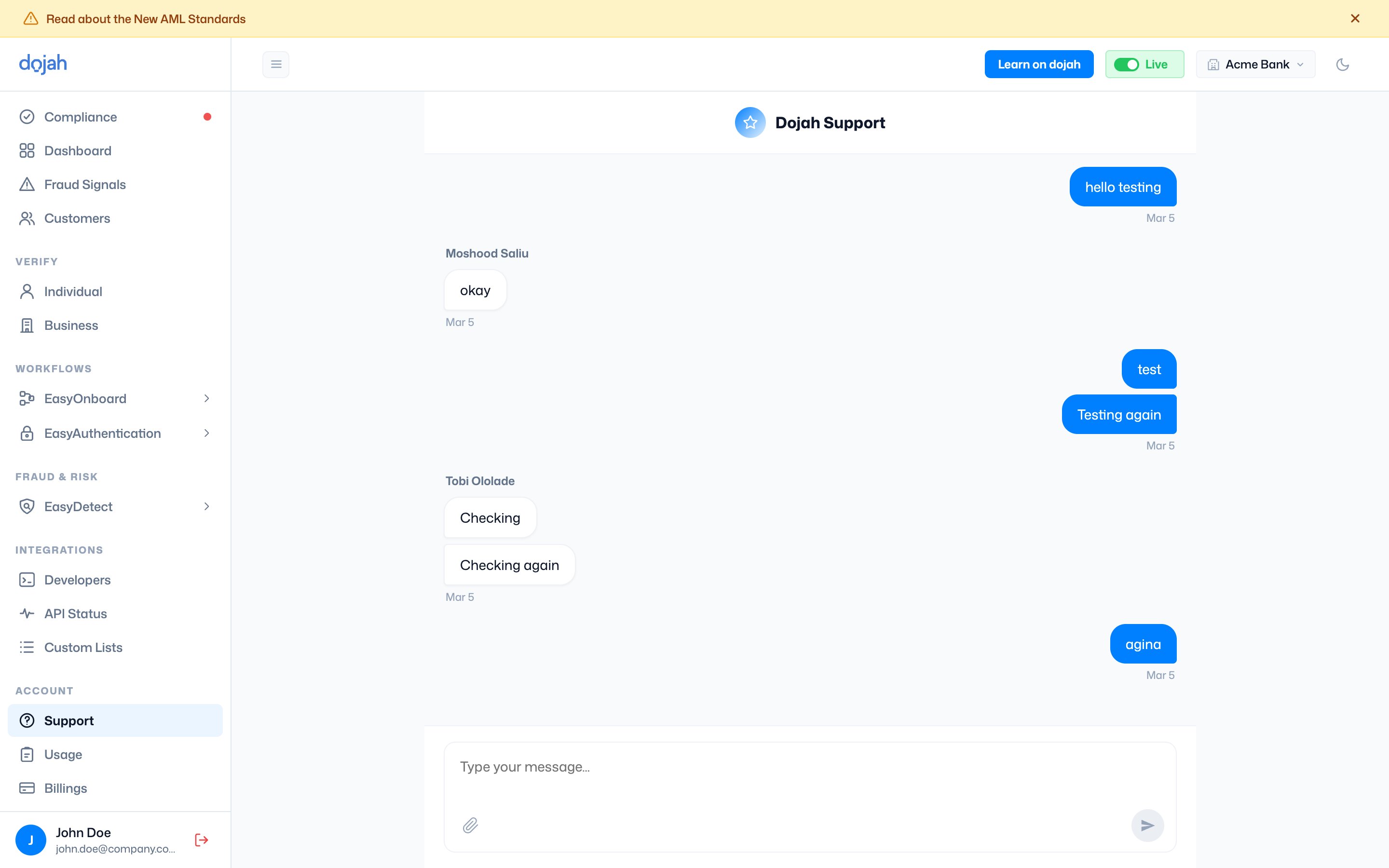
Sending a message
Type into the composer at the bottom and press Enter to send. To add a new line without sending, use Shift + Enter. The send button lights up once there’s something to send.Replies from the team
A support agent answers in the same thread, with their name above their reply. When the same person sends several messages in a row, they’re grouped together under one name to keep the conversation easy to read. Because the history lives on the page, you can reopen Support any time to revisit an earlier exchange.Frequently asked questions
How do I contact Dojah support?
How do I contact Dojah support?
Open Support under Account in the dashboard sidebar. Type your message in the composer and press Enter — a support agent replies in the same chat. There’s no separate ticket to raise.
Can I attach a screenshot or document to a support chat?
Can I attach a screenshot or document to a support chat?
Yes. Select the paperclip in the composer to attach a file. Sharing a screenshot of the error or the response you received usually helps the team get to an answer faster.
Where do I find my past support conversations?
Where do I find my past support conversations?
Your full history stays on the Support page. Reopen it and scroll up to see earlier messages and the team’s replies, each with its date.
How do I add a new line without sending my message?
How do I add a new line without sending my message?
Press Shift + Enter to drop to a new line within the same message. Enter on its own sends what you’ve typed.