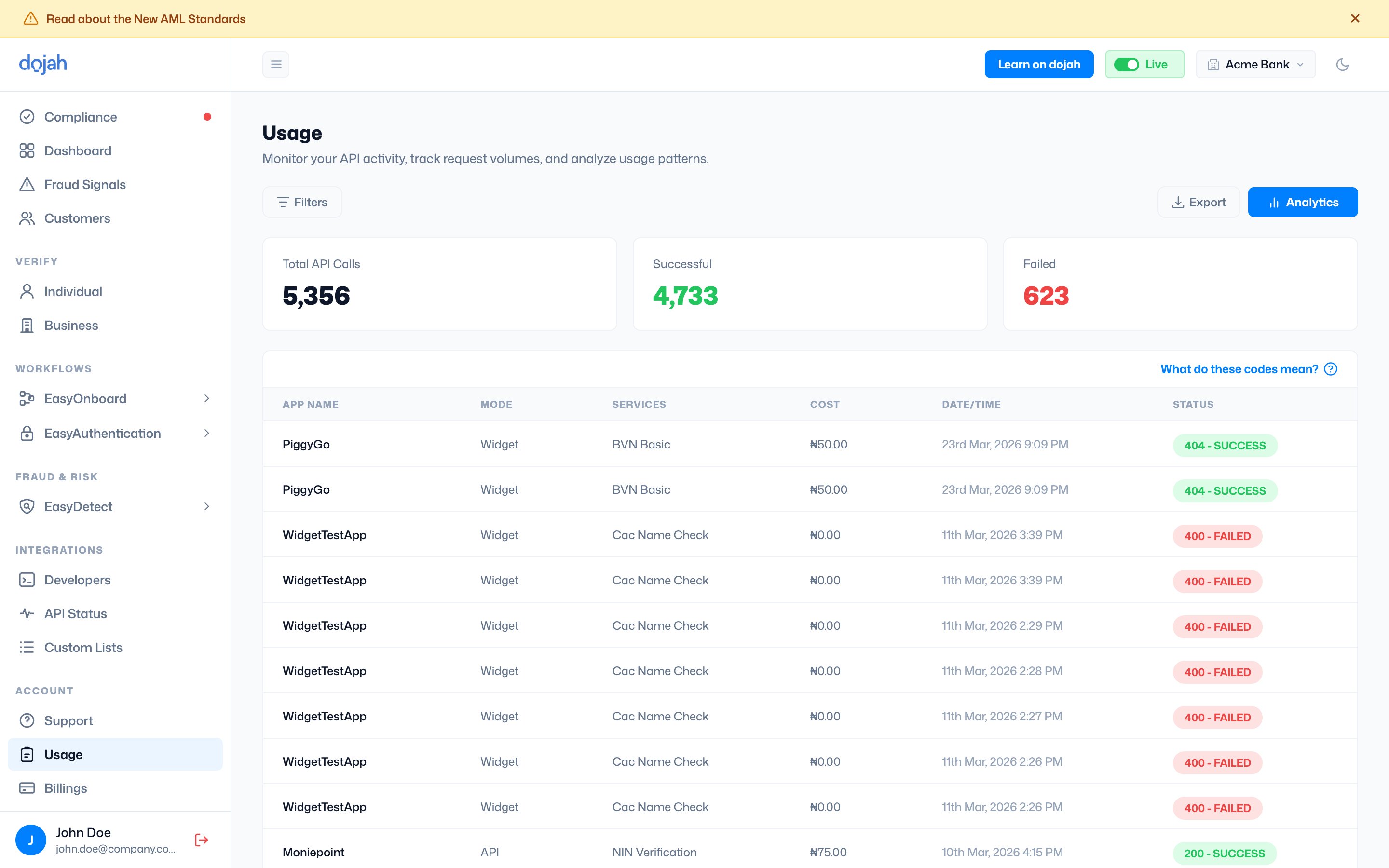
The Usage page gives you a complete, real-time log of every API call made on your account. Every time a verification runs, whether triggered from the dashboard, through an integration, or via a direct API call, it is recorded here with its cost, service type, and outcome. This makes Usage your primary tool for monitoring API activity, tracking spend, identifying failures, and understanding how your integrations are performing over time.Documentation Index
Fetch the complete documentation index at: https://docs.dojah.io/llms.txt
Use this file to discover all available pages before exploring further.
The Usage log
The main Usage page displays a running log of all API calls made on your account. At the top, three summary metrics give you an at-a-glance view of activity for the selected period: Total API Calls - the total number of requests made across all services and applications. Successful - calls that completed and returned a result from the data source. Failed - calls that did not complete successfully, either due to a technical error or an upstream database issue. Each row in the log represents one individual API call and shows: App Name - the application or integration that triggered the call. If you have multiple apps configured, this tells you which one generated the activity. Mode - whether the call was made via API Call (a direct programmatic call from your integration) or another method. This helps distinguish automated integration activity from manual dashboard lookups. Services - the specific Dojah service used for that call, for example Watch List, NIN Verification, CAC Basic Search, Address Verification, or OTP Email. Cost - the amount deducted from your wallet for that call, displayed in Nigerian Naira. Each service has its own per-call cost. Reviewing this column helps you understand your spend distribution across different verification types. Date/Time - the exact timestamp of the call, accurate to the minute. Status - the HTTP response code and outcome of the call. A 200 - SUCCESS status means the call completed and a result was returned. Other codes indicate errors - click “What do these codes mean?” (top right of the log) for a full explanation of each status code.Filtering the usage log
Five filters let you focus the log on exactly the activity you need: Date - Filter by a specific date range. Use this to review activity from a particular day, week, or month, or to investigate a specific incident window. Apps - Filter by application name. If you have multiple integrations, this isolates the activity from one specific app; useful for debugging a particular integration or comparing volumes across products. Mode - Filter by how the call was made, separating API-triggered calls from other call modes. Status Code - Filter by the HTTP response code. The most useful application of this is filtering for non-200 codes to see only failed calls, which makes it much faster to identify and investigate failures without scrolling through successful ones. Services - Filter by the specific Dojah service, for example, showing only BVN lookups, only AML screenings, or only address verifications. Use this to review spend or failure rates for a particular service type in isolation.Exporting usage data
Click the Export button (top right of the Usage page) to download your usage log as a file. Apply any filters first to export only the records you need. Use exports for:- Monthly reconciliation of API spend against your wallet top-ups
- Providing usage records to your finance team or auditors
- Debugging exercises where you need to share API activity with Dojah support
- Internal reporting on verification volumes by service or application

Usage Analytics
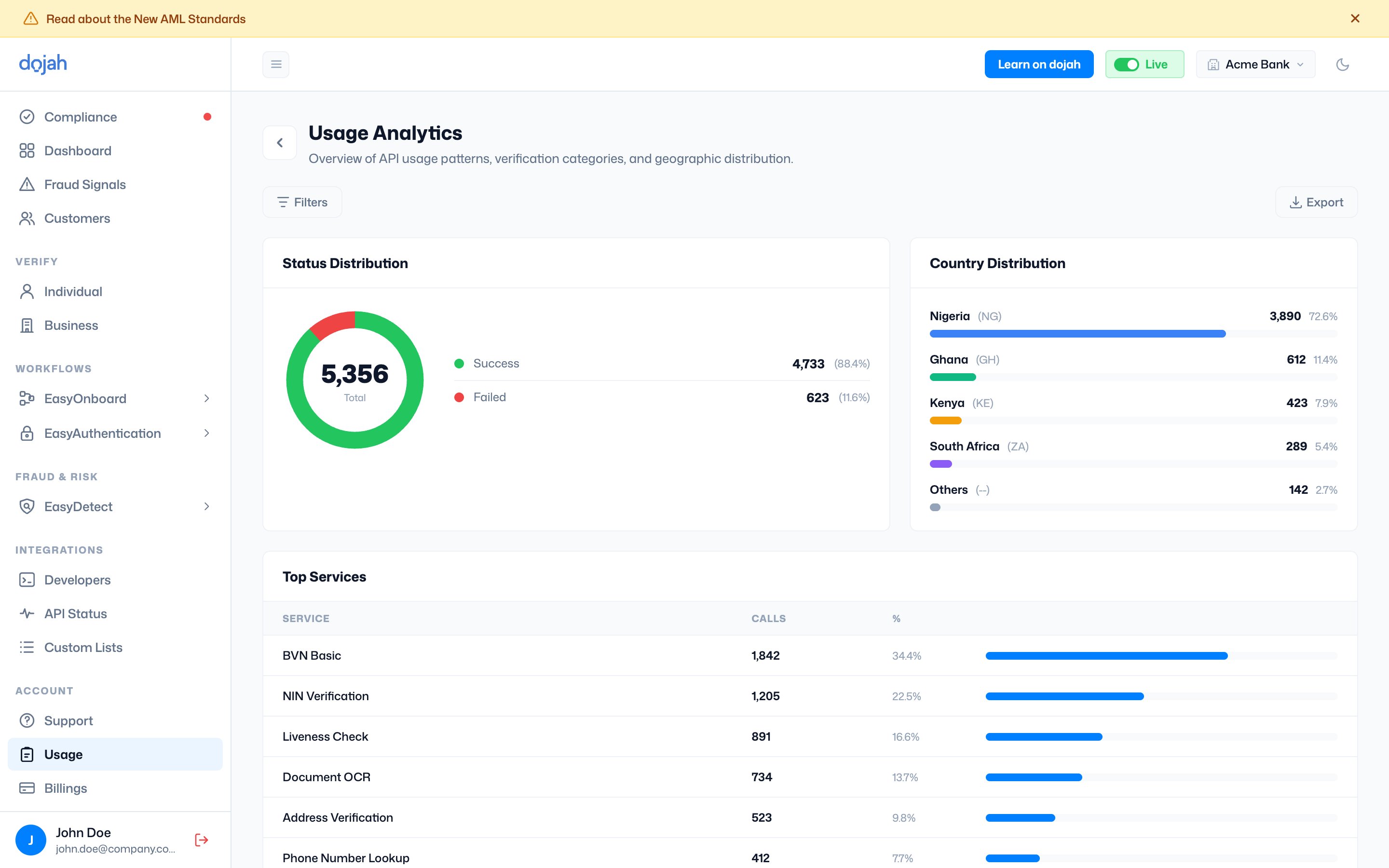
Click the Analytics button (top right of the Usage page) to open the Usage Analytics view. This moves beyond the raw log and presents your usage data as charts and summaries, making patterns and trends much easier to identify.- Filters in Analytics
- Status Distribution
- Country Distribution
- Top Services
- A high Watchlist Search count reflects AML screening activity
- Address Fetch reflects address verification calls
- CAC Advanced Search and CAC Basic Search reflect business verification activity
- NIN Verification and other ID types reflect individual government data lookups
- OTP Email reflects EasyAuthentication activity
- Analysis reflects Document Analysis calls
- Phone Number Lookup reflects phone-based identity checks