
Where lists are used. Custom Lists are the building blocks for your fraud rules — for example, a Blocked Countries list or a VPN IP Addresses list that your EasyDetect rules check against. Find them under Integrations in the sidebar.
The Custom Lists table
The main view lists every custom list you’ve created. Use Search to find one by name, and + Create List to add a new one. Click a list’s name to open it and manage its items.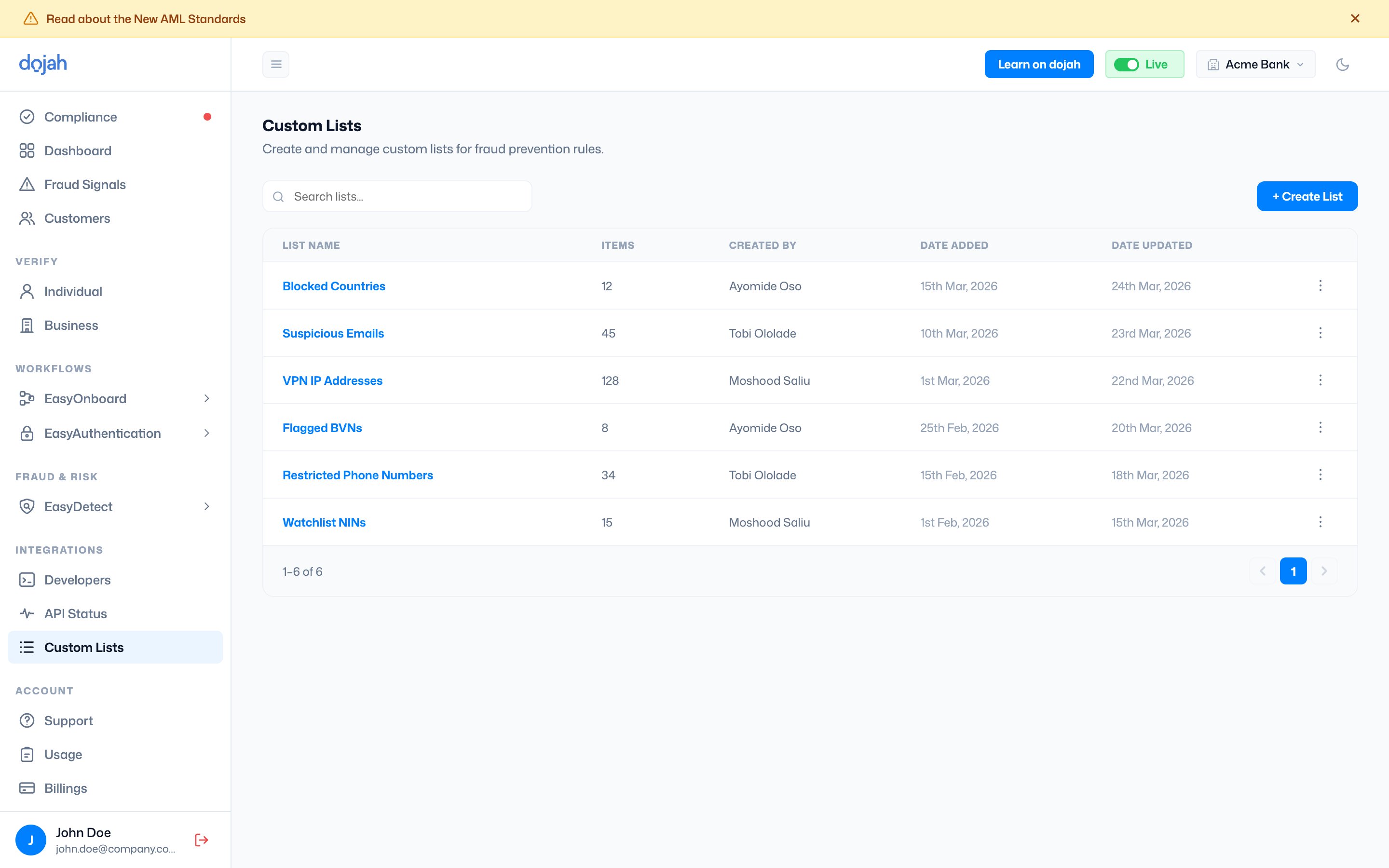
Creating a list
Select + Create List to open the form. Give the list a name and description, choose its Type, then add the values it should hold.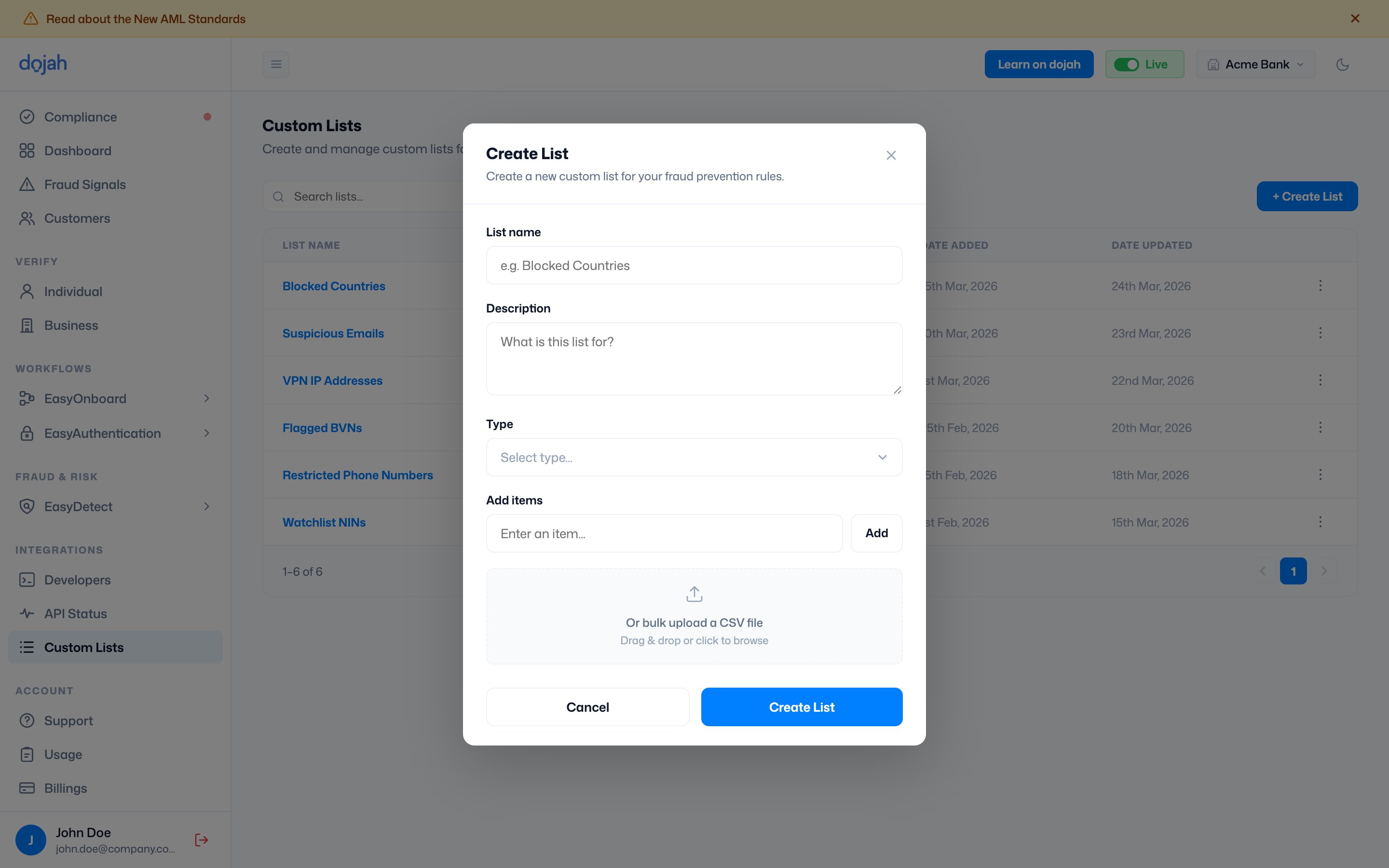
Viewing and editing a list
Click a list’s name to open its detail view, where every entry shows as a chip. From here you can Search items, Add Item, or remove a value with the × on its chip. To rename a list, change its description, or delete it, use the ⋮ menu on its row in the table.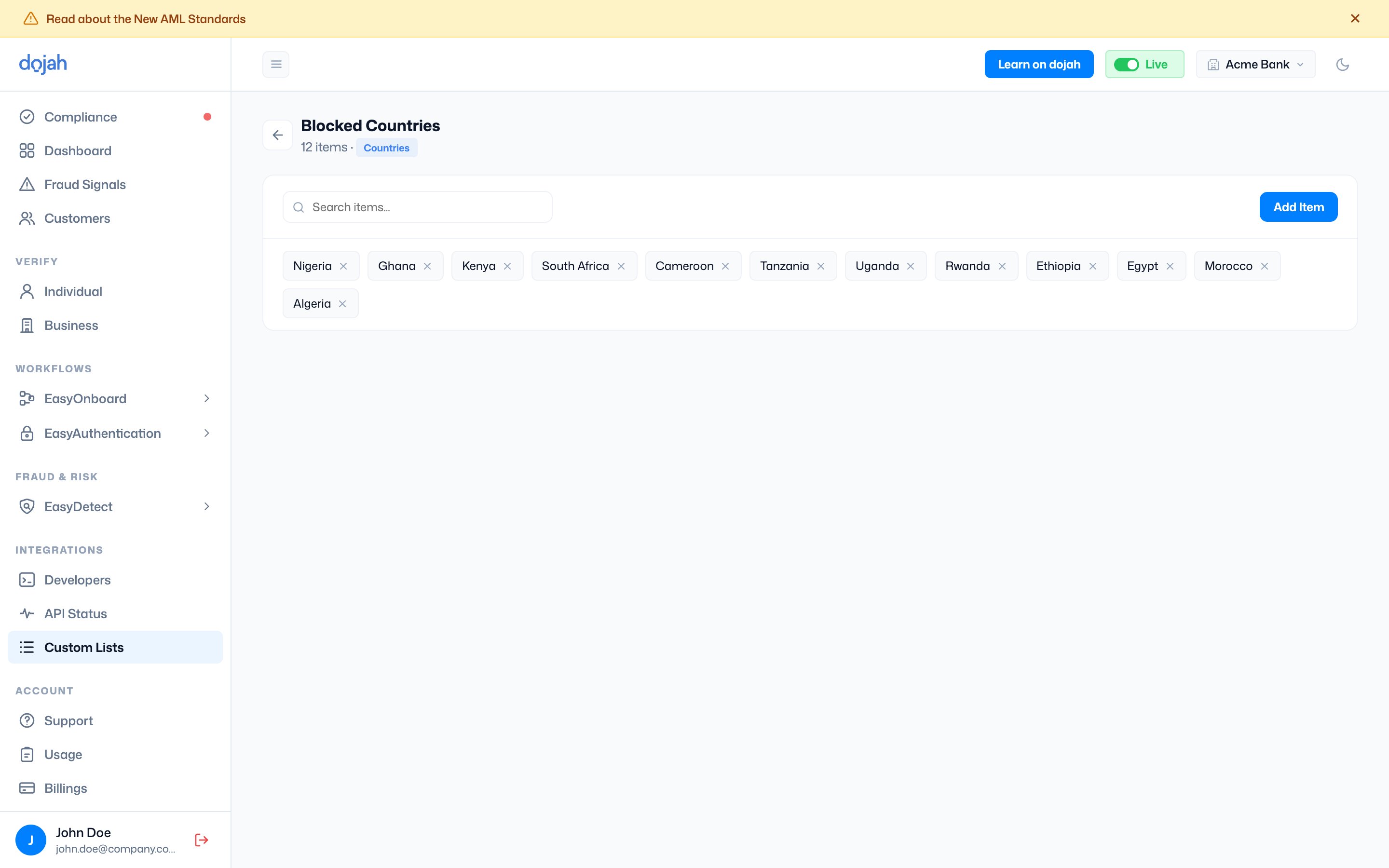
Frequently asked questions
What are custom lists in Dojah?
What are custom lists in Dojah?
A custom list is a named set of values — such as countries, emails, phone numbers, or IP addresses — that you maintain in one place and reference from your fraud prevention rules. Updating the list updates every rule that uses it, so you don’t have to edit each rule by hand.
What types of values can a custom list hold?
What types of values can a custom list hold?
A list can hold Countries, Email addresses, Phone Numbers, IP Addresses, BVNs, NINs, or Others. You set the type when you create the list.
How do I add many items to a list at once?
How do I add many items to a list at once?
In the Create or Edit form, use the bulk upload area to drag & drop or browse a CSV file. You can also add values one at a time by typing each and pressing Enter.
Can I edit or delete a list after creating it?
Can I edit or delete a list after creating it?
Yes. Open the ⋮ menu on the list’s row and choose Edit to change its details and items, or Delete to remove it. Deleting is permanent — the list and all its items are removed and can’t be recovered.