
Configuration
The Configuration tab holds your API keys and your apps. A badge shows whether you’re viewing Production or Sandbox keys — this follows your live/sandbox mode, so toggle modes to switch which set you see.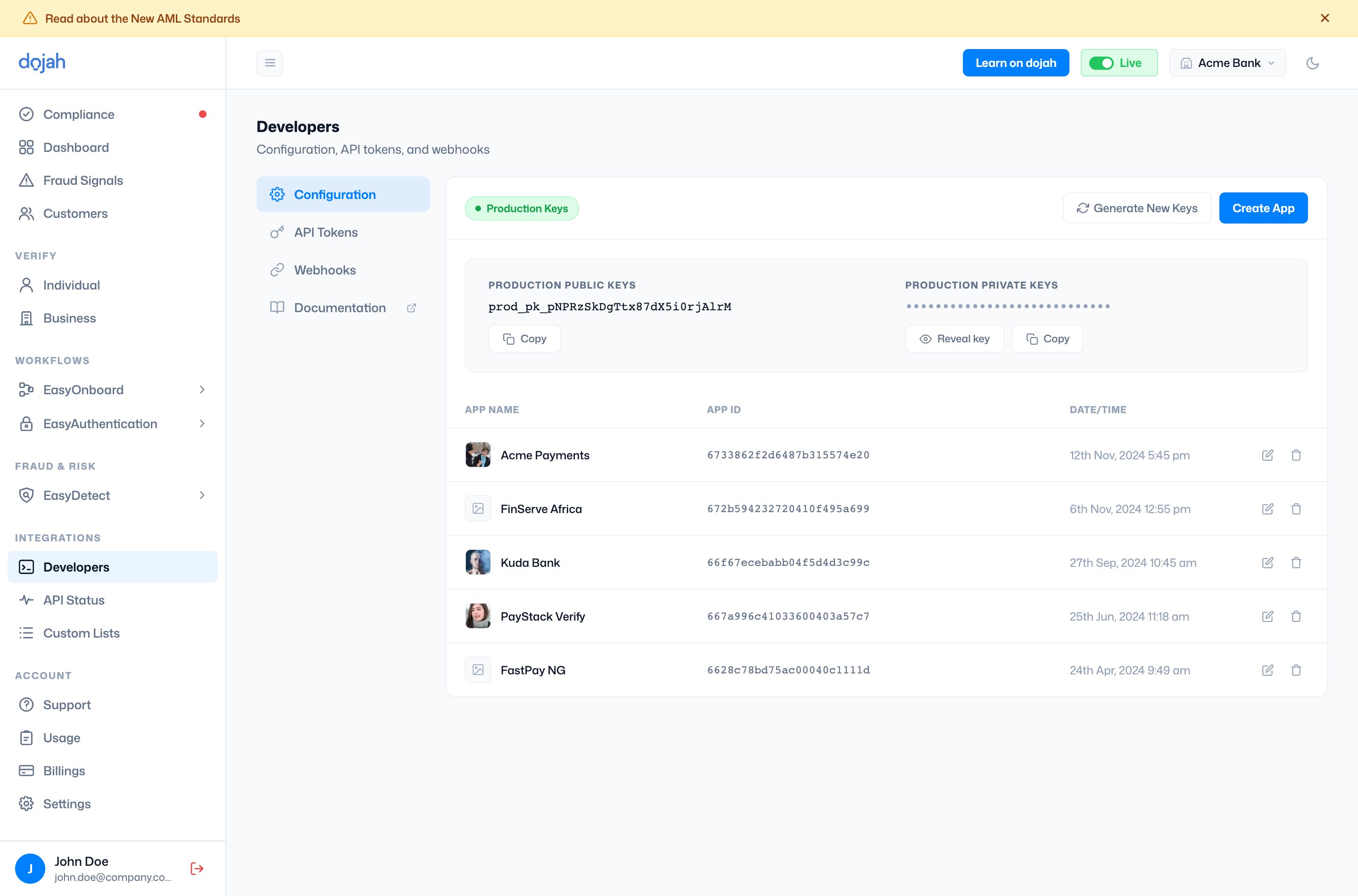
Apps
An app represents a single integration — typically one product or service you’re connecting to Dojah. Each app has its own App ID and brand assets (a logo and primary color, used to style the verification experiences your users see), and your API tokens and webhooks are each tied to a specific app. If you run more than one product, giving each its own app keeps their credentials, webhooks, and branding cleanly separate.API Tokens
The API Tokens tab manages the tokens that authenticate your requests. Each token has a name and a masked Token ID — select the eye icon and enter your password to reveal it. Use Create Token to add one (give it a name and choose the app it belongs to).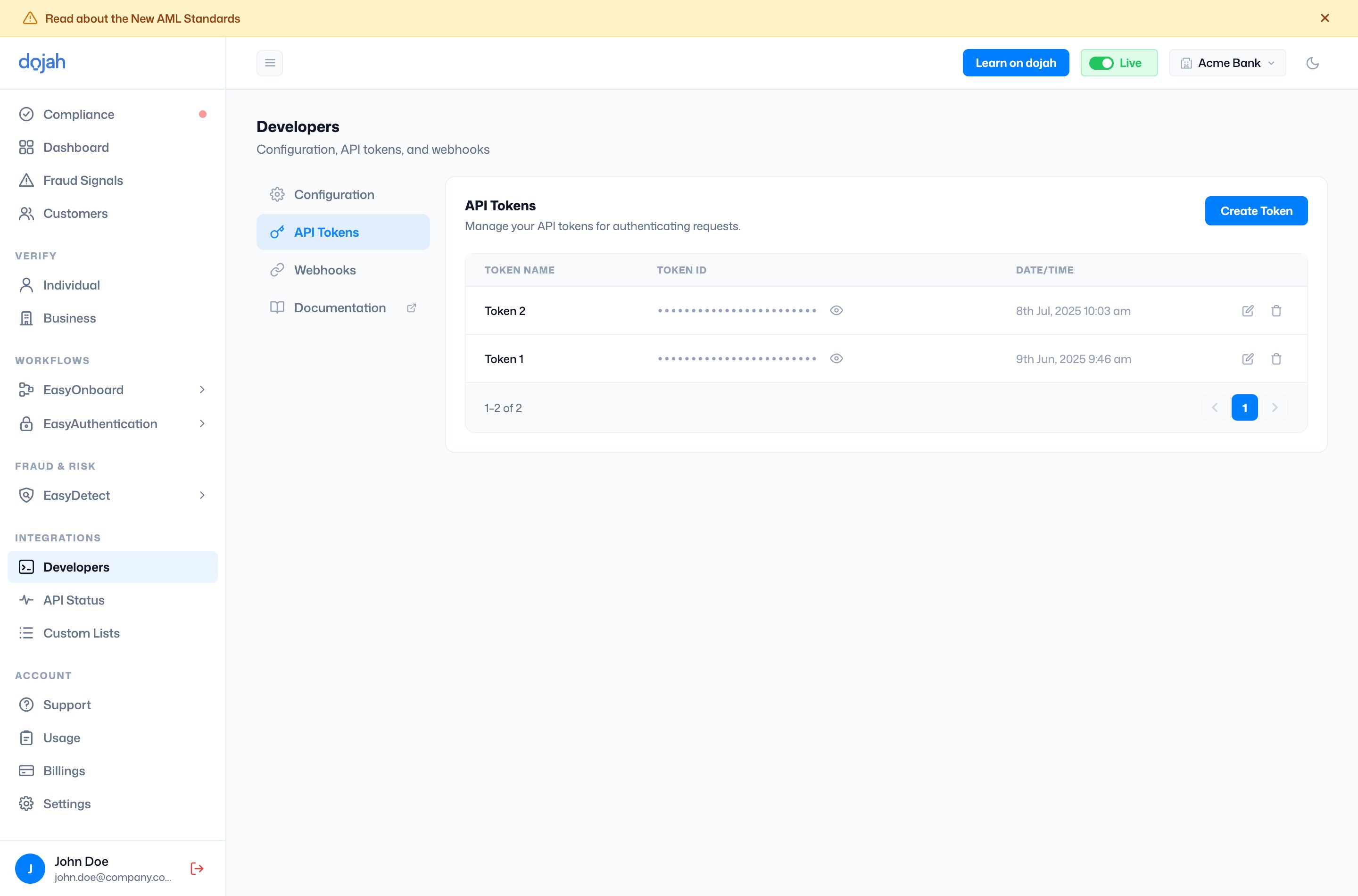
Webhooks
The Webhooks tab lets you receive real-time event notifications. Select Subscribe to point an app at an endpoint: choose the app, enter your Webhook URL, and pick the service whose events you want.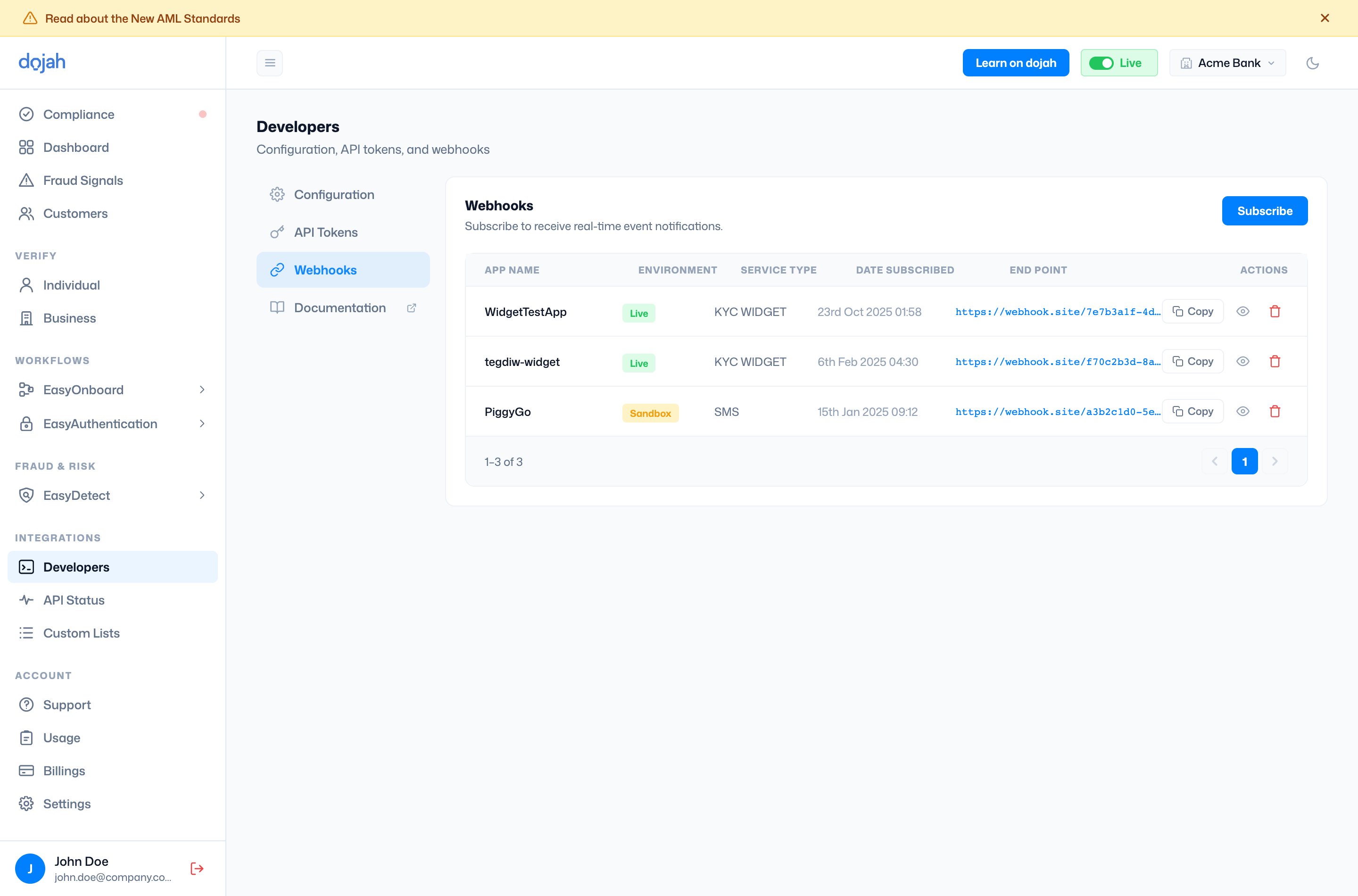
Frequently asked questions
Where do I find my Dojah API keys?
Where do I find my Dojah API keys?
Open Developers under Integrations and stay on the Configuration tab. Your public key is shown in full; reveal the private key by selecting Reveal key and entering your password. The badge tells you whether you’re viewing Production or Sandbox keys — switch your live/sandbox mode to see the other set.
What is an app in Dojah, and what is it used for?
What is an app in Dojah, and what is it used for?
An app represents one integration — usually a single product or service you’re connecting to Dojah. It has its own App ID and brand assets (logo and primary color, used to style the verification experiences your users see), and your API tokens and webhook subscriptions are each linked to a specific app. Running several products? Give each its own app so their credentials, webhooks, and branding stay separate.
What’s the difference between API keys and API tokens?
What’s the difference between API keys and API tokens?
Your API keys (public and private) are the core credentials for an environment and live on the Configuration tab. API tokens are named credentials you create on the API Tokens tab — handy when you want separate, individually revocable tokens for different uses. You can rename or revoke a token without touching your main keys.
How do I edit or delete an API token?
How do I edit or delete an API token?
On the API Tokens tab, each token row has two icons at the end: Edit (the pencil) to rename it, and Delete (the trash) to revoke it. Deleting is permanent and takes effect immediately — anything using that token will lose access.
How do I set up a webhook in Dojah?
How do I set up a webhook in Dojah?
Go to the Webhooks tab and select Subscribe. Choose the app, enter the Webhook URL where events should be delivered, and pick the service whose events you want to receive. The new subscription appears in the table, where you can copy, view, or delete it.
What happens when I generate new keys?
What happens when I generate new keys?
Generating new keys rotates your credentials and invalidates the existing ones immediately. Any integration still using the old keys will start failing, so update your apps with the new keys right away. You’ll be asked for your password to confirm.