API keys
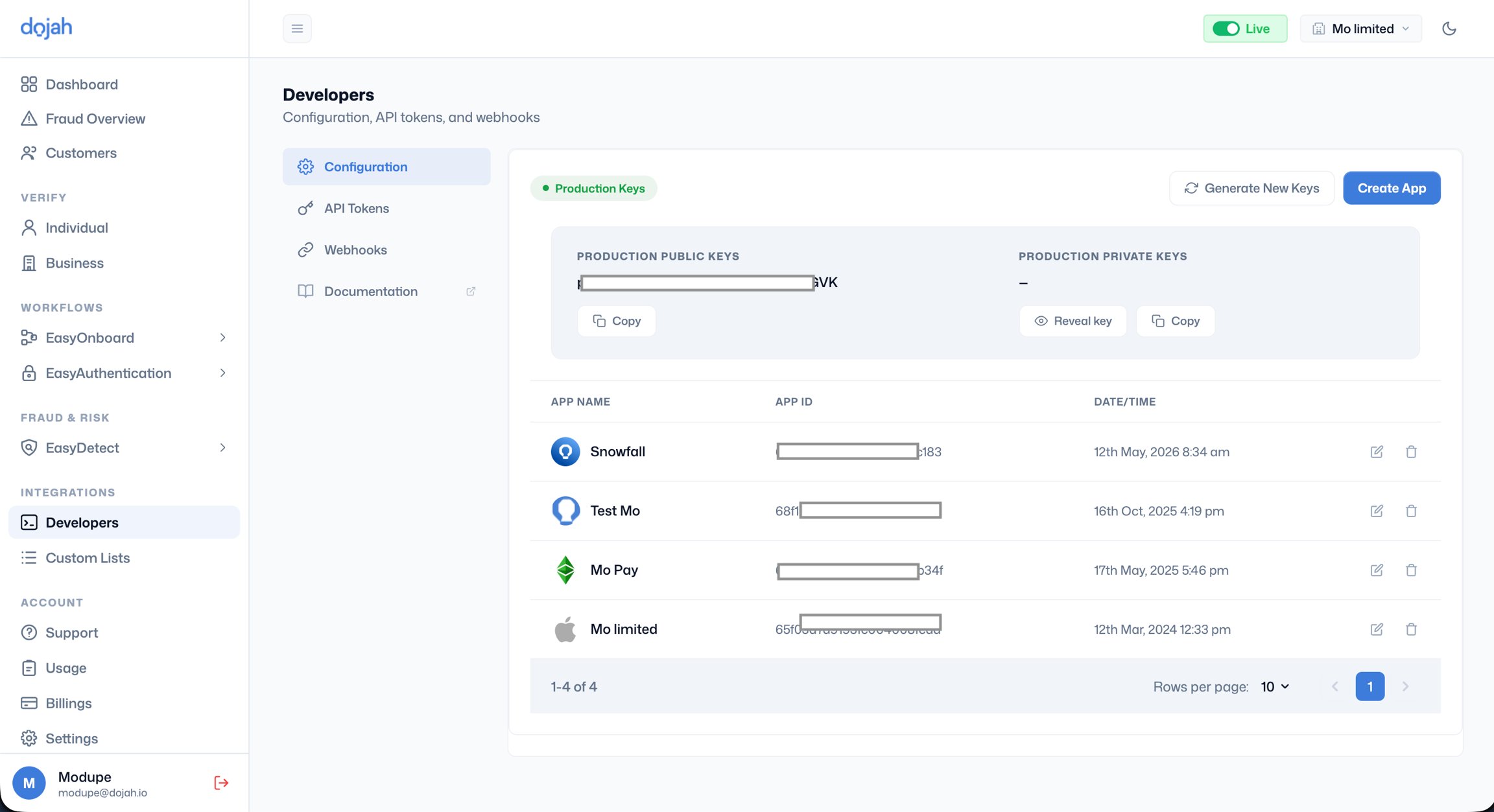
At the top of the configuration page are your Production Keys, the credentials your live integration uses to authenticate every API request to Dojah. There are two keys: Production Public Key: This is the key you include in client-side or server-side requests to identify your account. It is visible by default and safe to reference in your code. Production Private Key: This is the secret key used for server-side authentication. It must never be exposed in client-side code, public repositories, or anywhere outside your secure server environment. It is hidden by default; click Reveal key to view it after verifying your account password. Click Copy to copy it to your clipboard without it being displayed on screen.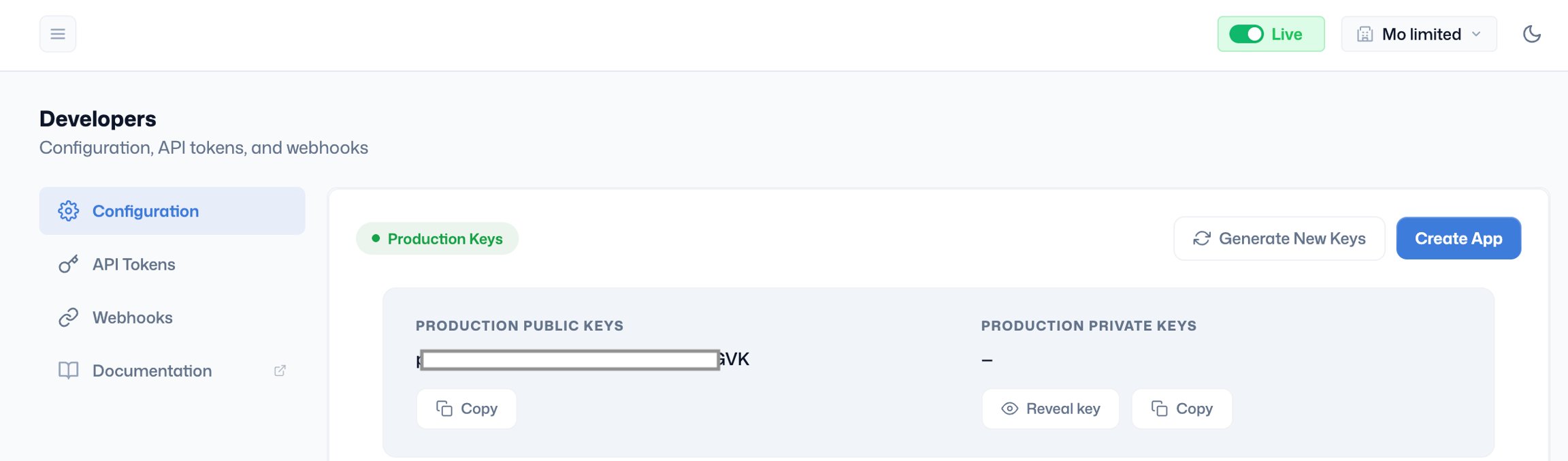
Revealing your private key
Click ‘Reveal key’ next to the production private key. A modal opens asking you to enter your account password to confirm your identity. Enter your password and click Confirm. The private key is then displayed. Copy it immediately and store it securely; close the reveal view as soon as you have what you need.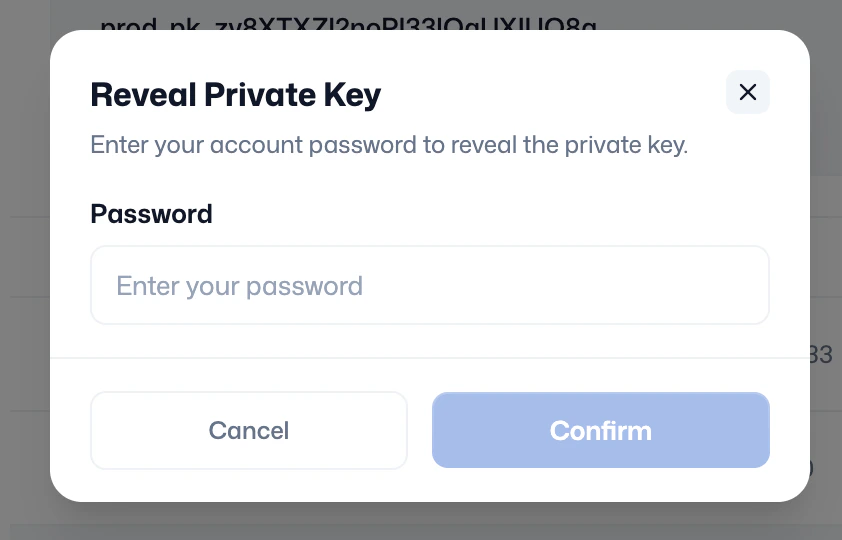
Generating new keys
If you suspect your API keys have been compromised, for example, if a private key was accidentally committed to a public repository or shared insecurely, you must rotate them immediately. Click Generate New Keys. A modal warns you that existing keys will be invalidated immediately. Enter your account password to confirm and click Confirm. New public and private keys are generated instantly. Your old keys stop working immediately, so any integration using them will begin failing until updated with the new keys. After rotating keys, update every integration, server environment variable, and configuration file that references the old keys before testing again.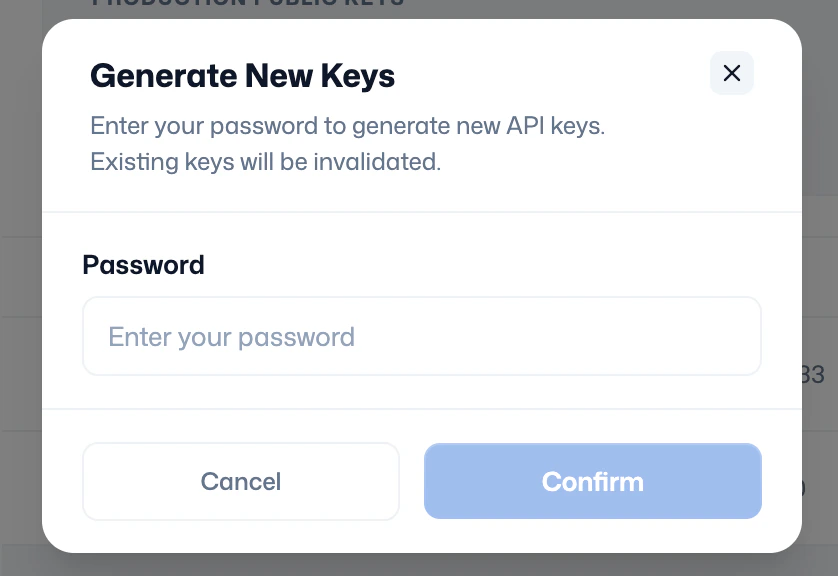
Apps
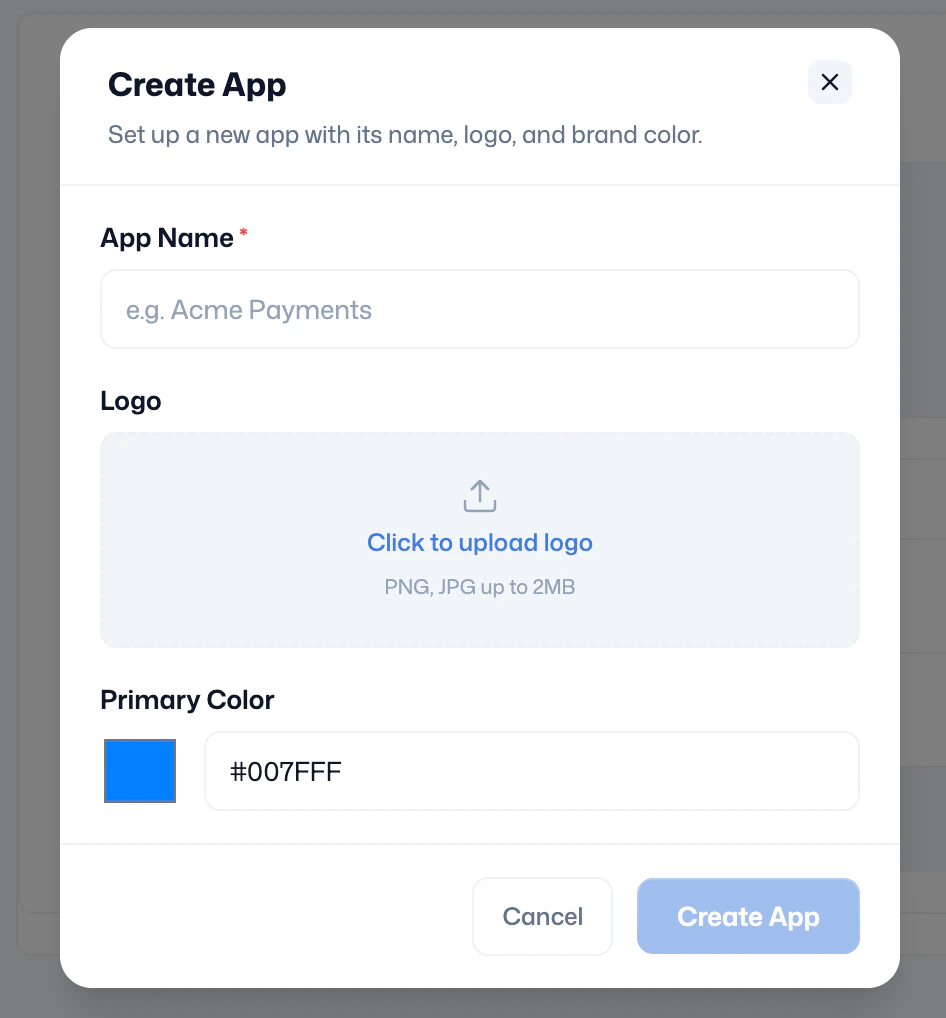
Below the API keys, the app list shows every application you have configured on your account. Each app represents a distinct integration, for example, a mobile app, a web widget, or a direct API integration, and lets you segment your verification activity, usage data, and webhook subscriptions by product. Each app entry shows its name, a unique App ID, and when it was created. The App ID is used when attributing lookups and events to a specific integration. Creating a new app, Click Create App. Fill in three fields:- App Name - A descriptive name that identifies this integration. This name appears in your Usage analytics, verification records, and webhook logs.
- Logo - upload a PNG or JPG image (max. 2MB). This logo appears in EasyOnboard KYC widgets and EasyAuthentication flows that your customers see (use your actual product logo).
- Primary Color - Enter a hex colour code that matches your brand. This is used as the accent colour in any widget UI your customers interact with.