When to use Business Address Verification
- Merchant onboarding where physical presence at a location must be confirmed before activating a payment account
- Business lending or credit assessment where the company’s operational base is a factor in the credit decision
- Regulatory site checks requiring proof of a business’s physical premises
- Fraud prevention when a company’s claimed address cannot be independently confirmed through other means
- Re-verification of existing business customers where address details may have changed since original onboarding
Running a Business Address Verification
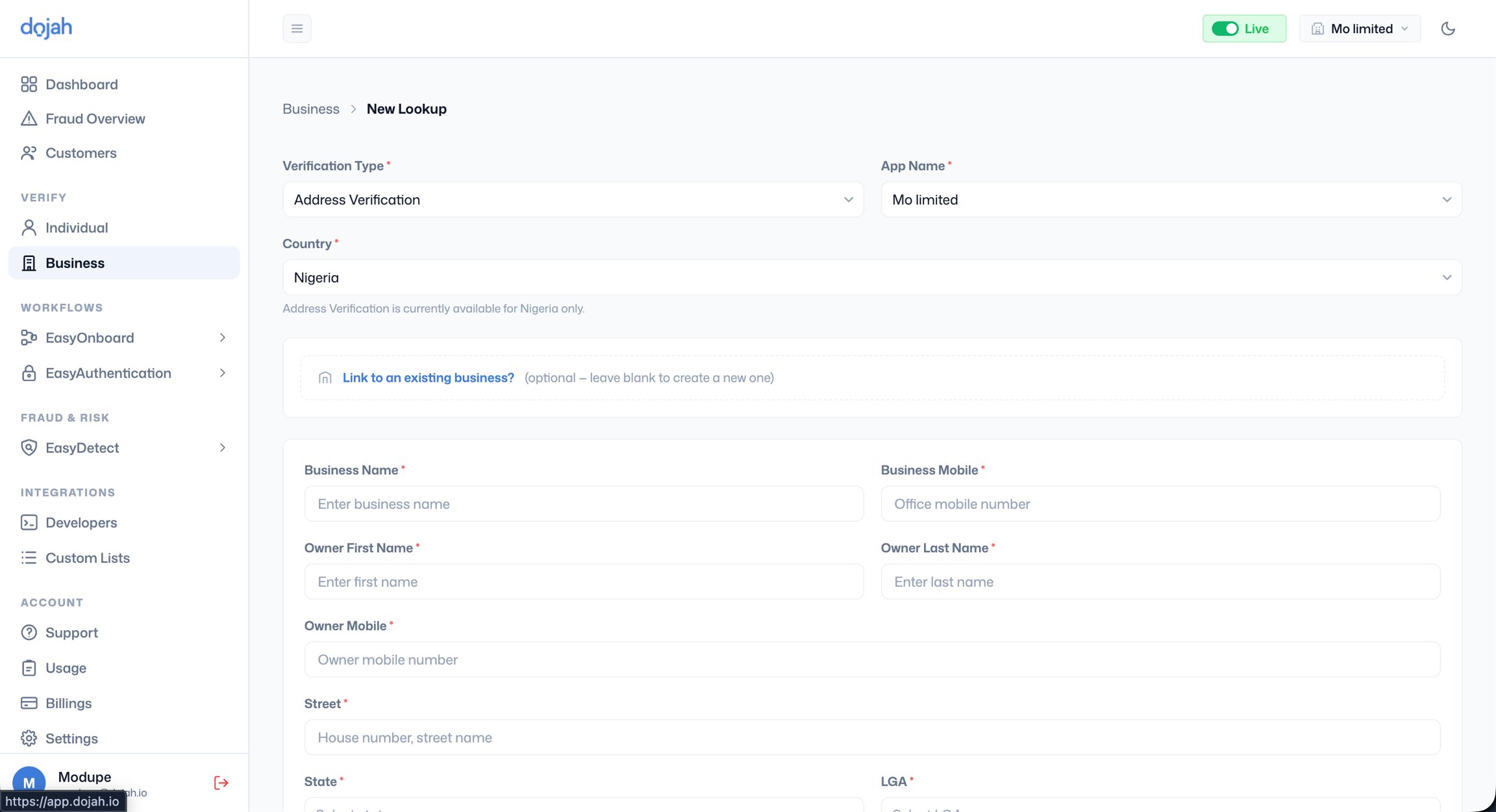
- Go to Verify > Business, click + New Lookup, and select Address Verification as the Verification Type.
- App Name - Select the application this verification should be attributed to.
- Country - Nigeria is the only currently supported country for Business Address Verification. This is confirmed by the note on the form: Address Verification is currently available for Nigeria only.
- Link to an existing business - If this company already has a record in your system, link this verification to their existing profile so all checks remain consolidated. Leave blank to create a new business record automatically.
- Fill in all required fields:
- Business Name - The trading or registered name of the business at the address being verified. This is what the field agent will use to identify the premises on arrival.
- Business Mobile - The office or business landline/mobile number for the premises. The field agent may use this to contact the business prior to or during the visit to coordinate access or confirm the address.
- Owner First Name and Owner Last Name - The full name of the business owner or the primary contact person for the premises. This is used by the field agent to identify who to speak with at the location.
- Owner Mobile - The personal mobile number of the business owner or designated contact. This is separate from the business phone number and provides an additional contact point if the main business line is unreachable.
- Street - The full street address of the premises, including house or building number and street name. Be as specific and complete as possible; a vague street description significantly increases the chance of the field agent visiting the wrong premises or being unable to locate the address.
- State - Select the Nigerian state where the business premises is located.
- LGA - Select the Local Government Area within the chosen state. This narrows the location for the field agent and is required for all Nigerian address verifications.
- City - Enter the city or town where the premises is located.
- Landmark (Optional) - Enter the closest well-known landmark to the business premises, such as a major road, plaza, bank branch, or public building. While optional, providing a landmark is strongly recommended for addresses in areas where street numbering is inconsistent or unofficial; it helps the field agent locate the correct premises quickly and reduces delays.
- Once all required fields are filled, click Submit Address. The verification is queued for a field agent’s visit.
What happens after submission
Unlike instant database lookups, Business Address Verification involves a physical site visit. After you submit the address:- A field agent is assigned to visit the premises.
- The agent contacts the business using the phone numbers provided to arrange or confirm the visit where necessary.
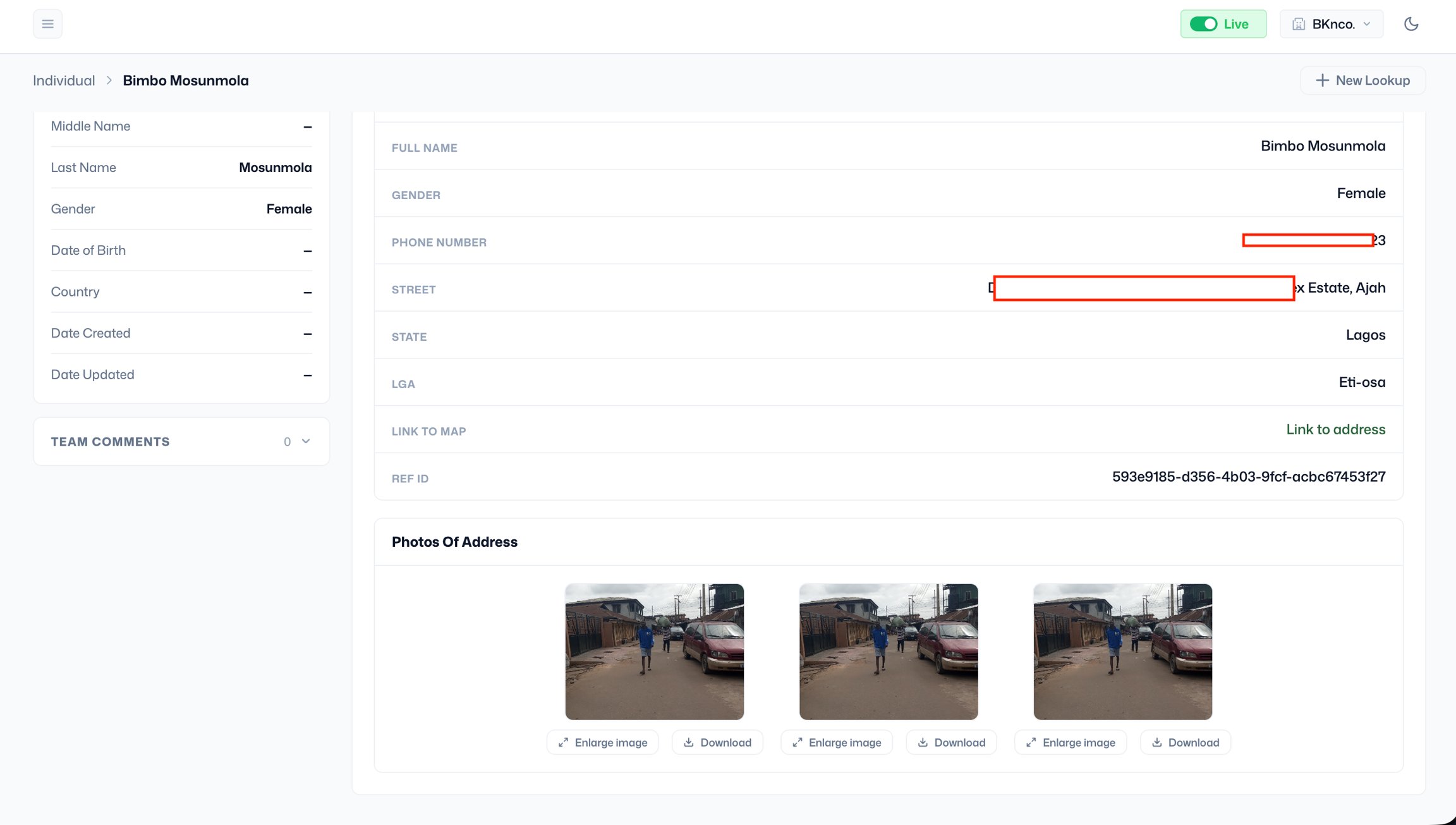
- The agent visits the location, photographs the premises and surrounding area, and records the address details observed on site.
- The completed verification is submitted by the agent, and the result is returned to your account.