
Verifications and customers. Each lookup can be attached to a customer — either a new one or an existing record you link on the form. Results then roll up into the person’s profile on the Customers page, so you build one identity over time instead of scattered checks.
Verification types
Dojah offers five kinds of individual check. Which ones are available depends on the country you choose — AML Screening and Document Analysis work everywhere, while the others cover Nigeria and a set of other countries.Running a lookup
Select + New Lookup to open the form. Choose your Country, the App Name to record the lookup under, and the Verification Type — the form then shows the fields that check needs. For a Government Lookup, for example, you pick an ID Type and enter the ID Number.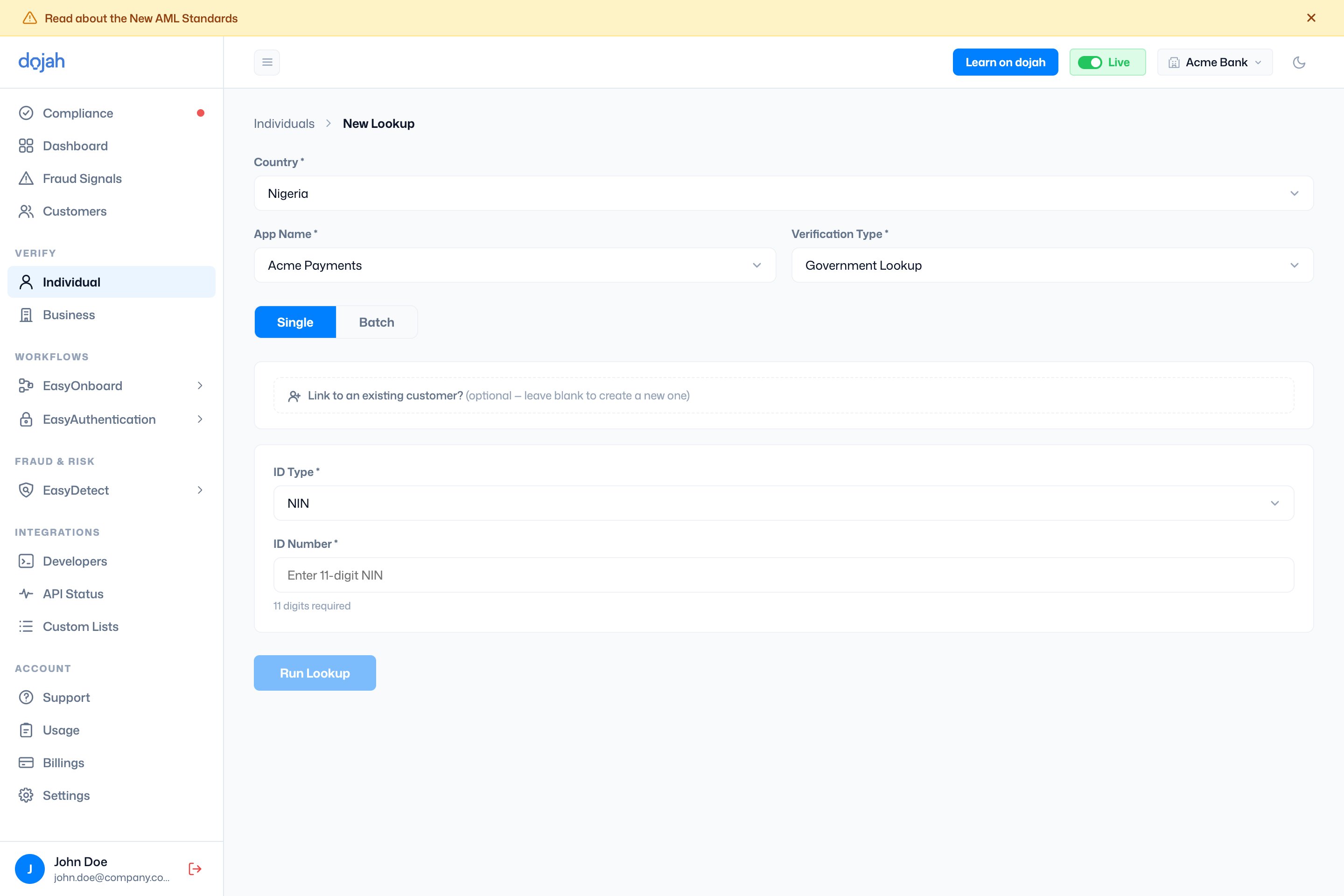
The submit button names itself for the check — Run Lookup, Submit Address, Perform Search, or Upload — and becomes available once the required fields are filled.
Verification history
The default view lists everything you’ve run, split into four tabs — one per result type. Each tab opens with its own headline counts and a table you can Search, Filter, and Export.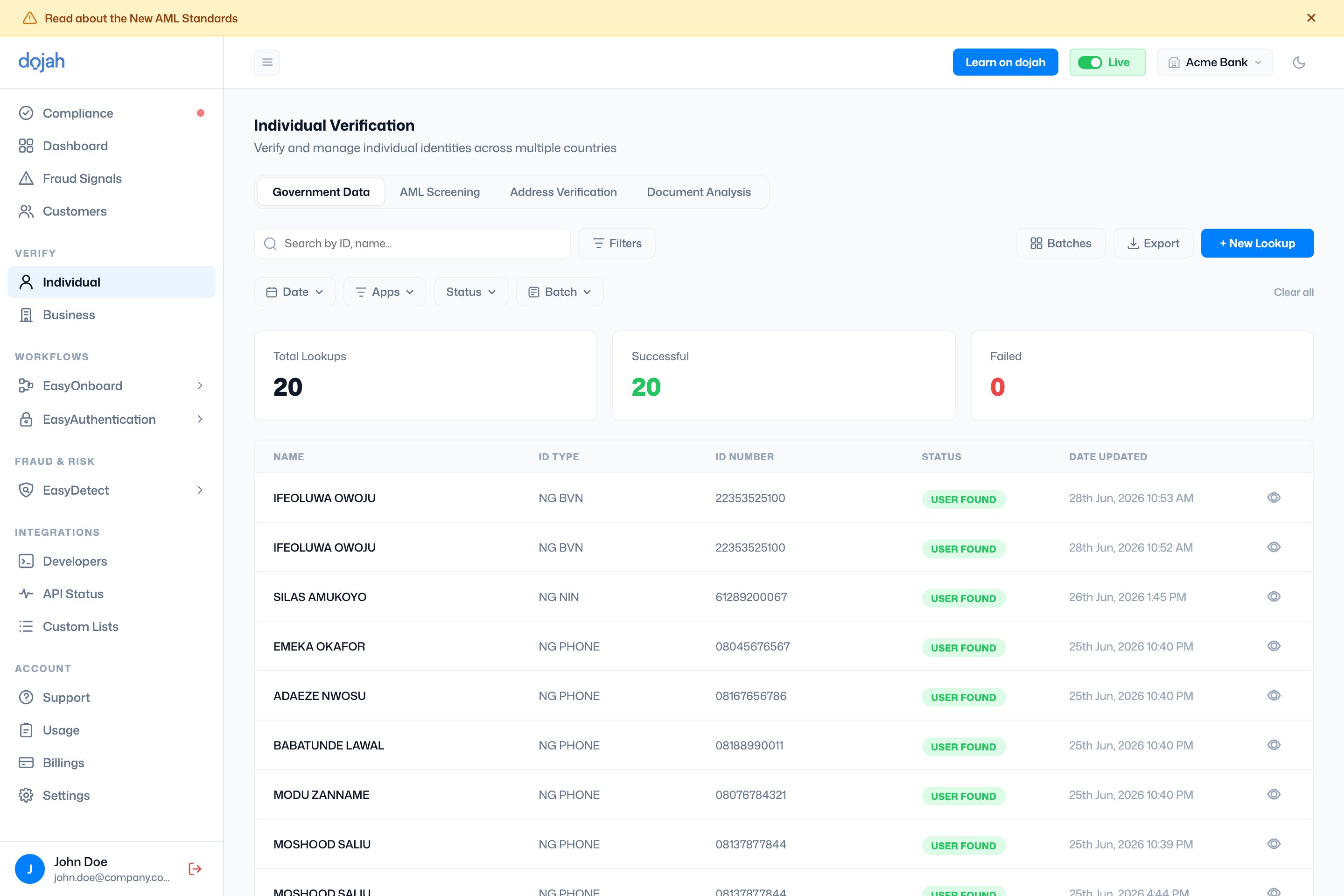
Status reads differently per check — a Government Lookup shows User Found or User Not Found; an address check moves through Pending, Completed, Failed, or Cancelled; an AML case shows its match status and risk level.
Reading a result
Open a verification to see the full result. The header shows the person’s photo, name, an overall status (Verified, Pending, or All Failed), and how many checks are attached. Down the left is a summary sidebar; the main panel has a tab per verification.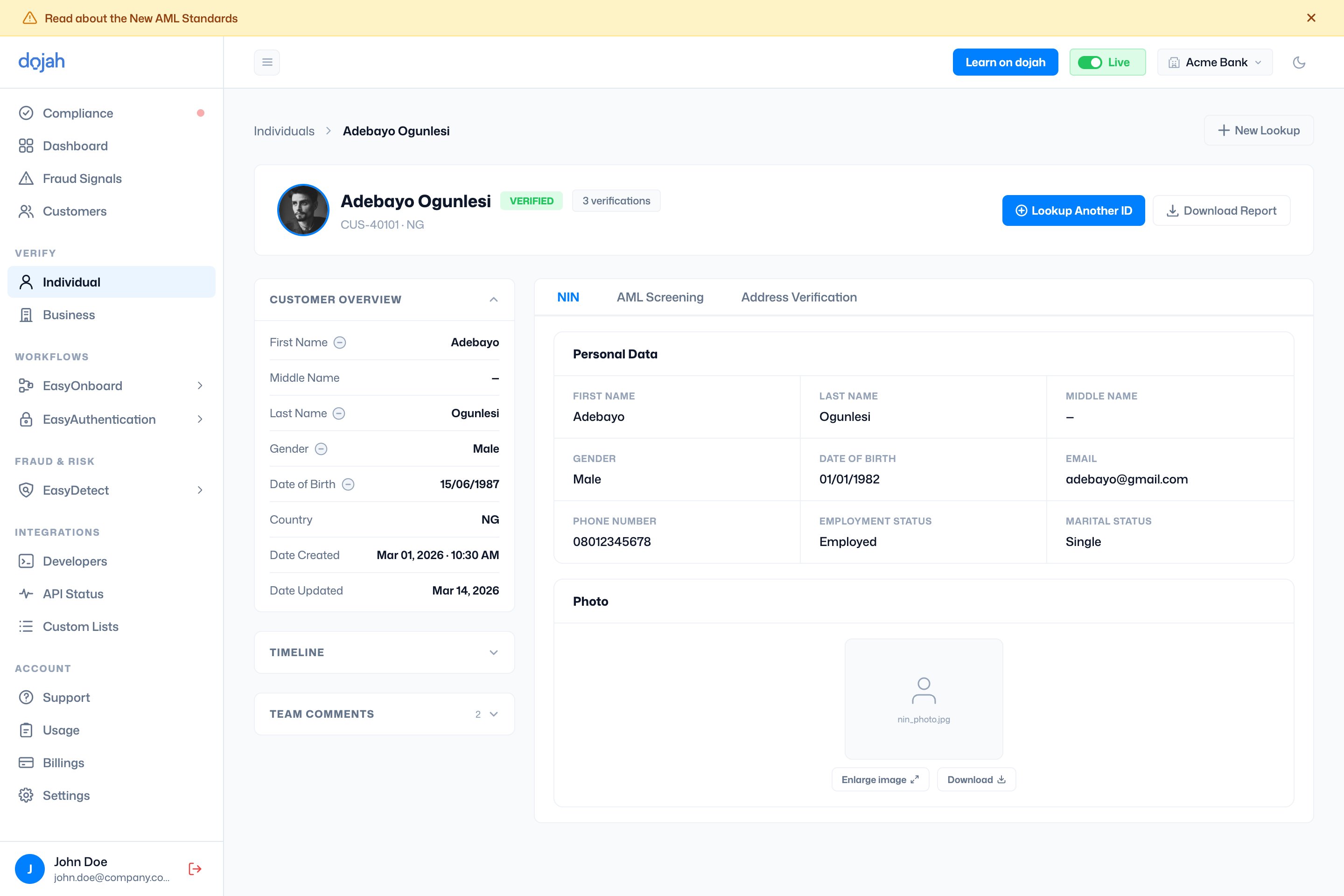
Each verification tab shows that check’s data: a Government Lookup lists the returned personal data and photo; AML Screening lists any watchlist matches; a Credit Check breaks down into Credit Score, Credit Summary, and Behavioral Analysis. A failed check shows the error and a Retry This Lookup button instead.
Use Download Report to export the result as a PDF — you can choose which verifications to include — or Lookup Another ID to run a new check for the same person.
Frequently asked questions
How do I verify someone’s identity on Dojah?
How do I verify someone’s identity on Dojah?
Go to Verify → Individual and select + New Lookup. Choose the country, the app to record it under, and the verification type, then fill in the details (for example an ID type and number for a Government Lookup) and run it. The result appears in your history and on the person’s customer profile.
What ID types can I verify?
What ID types can I verify?
It depends on the country. In Nigeria you can verify NIN, BVN, phone number, driver’s licence, voter’s card, passport, and TIN; other countries have their own national IDs and passports. The available ID types appear once you pick a country and choose Government Lookup.
What’s the difference between the verification types?
What’s the difference between the verification types?
Government Lookup checks an ID against an official registry; Address Verification confirms a physical address; Credit Check pulls a credit report from a BVN; AML Screening screens against sanctions, PEP, and watchlists; and Document Analysis reads and validates an uploaded ID document. AML Screening and Document Analysis are available in every country.
How do I verify many people at once?
How do I verify many people at once?
On the New Lookup form, switch from Single to Batch, give the batch a name, and upload a CSV (a template is provided). Each batch runs as a group, and you can track progress and find past uploads from the Batches button on the history view.
Can I download a verification report?
Can I download a verification report?
Yes. Open the result and select Download Report. When a person has more than one verification, you can choose which ones to include before exporting the PDF.