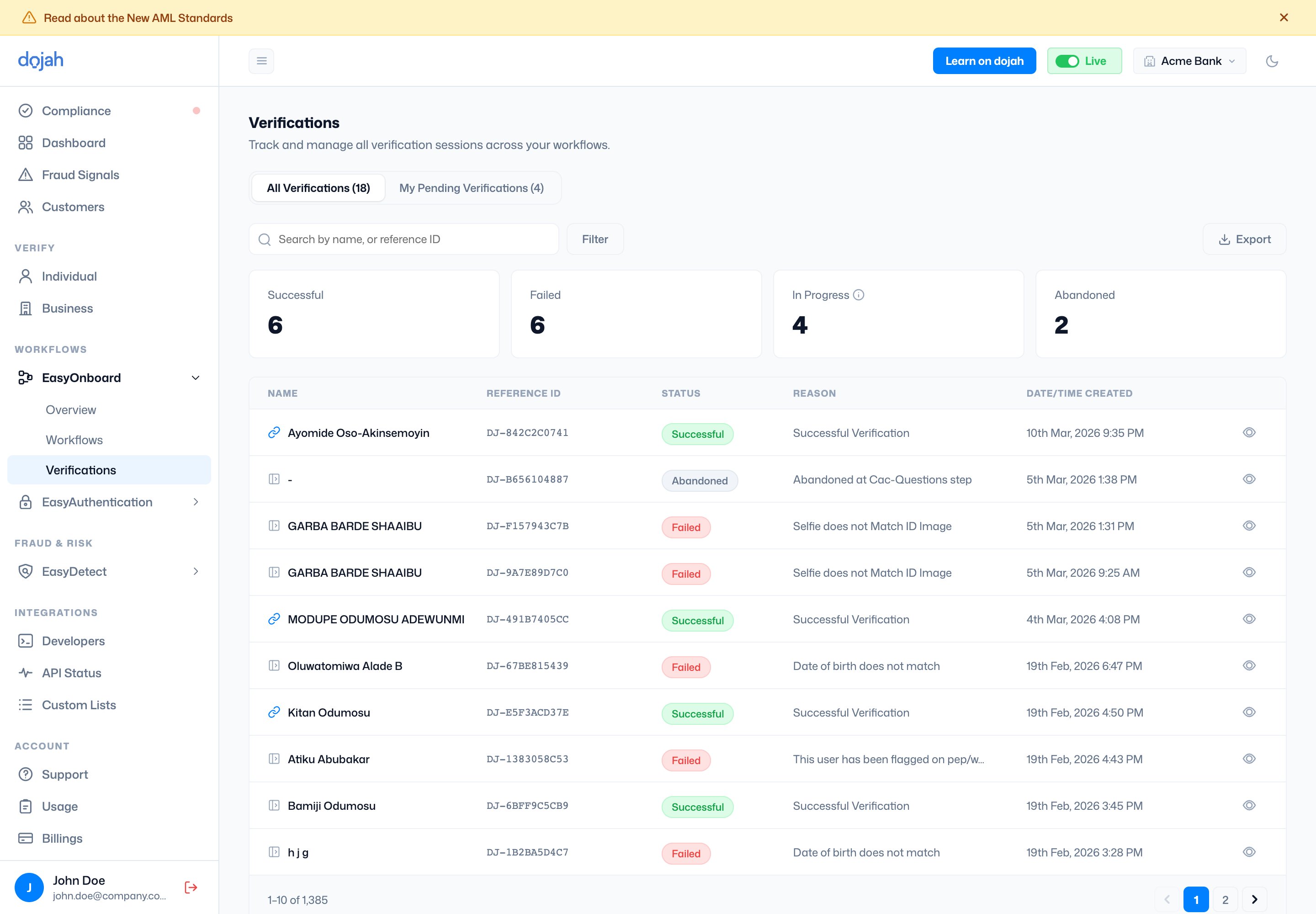
The Verifications page tracks all verification sessions across your workflows. It has two tabs:Documentation Index
Fetch the complete documentation index at: https://docs.dojah.io/llms.txt
Use this file to discover all available pages before exploring further.
- All Verifications: shows every verification session regardless of who it is assigned to.
- My Pending Verifications: shows only sessions pending your personal review.
Viewing a verification
Click the eye icon on any row to open the verification detail page. At the top you’ll see the user’s name and initials, their reference ID, and their verification status badge. Click Download Report to export the full verification report. The left panel contains:- Verification Overview: a summary of the verification outcome (expand to view).
- Failure Reason: shown in red when the verification failed, with a plain-language explanation of why it failed (e.g. “Selfie does not match ID image”).
- Timeline: a log of every action taken during the verification session, with a count of entries.
- Webhook: shows whether a webhook notification was sent, with a status badge (e.g. Sent).
- Sessions: the number of times the user attempted this verification.
- Cost Breakdown: the charges incurred for this verification.
- Government Data: shows the data retrieved from government databases, such as BVN details (BVN number, first name, last name, gender, date of birth, phone number) and the BVN photo. Images can be enlarged or downloaded.
- Liveness: shows liveness check results and scores.
- IP/Device: shows device and IP information captured during the session.


Re-verifying a user
If you need to send a user through verification again, click Reverify in the top right of the verification detail page. A confirmation modal will appear warning that clicking ‘Confirm’ will invalidate the current verification. Once confirmed, the current verification is invalidated, and the user can be sent a new verification link.