Documentation Index

Fetch the complete documentation index at: https://docs.dojah.io/llms.txt

Use this file to discover all available pages before exploring further.

Compliance is the account activation process that unlocks your Dojah account for live transactions. Until you complete it, your account operates in Sandbox mode, a test environment where you can explore the platform and build integrations using dummy data but cannot run real verifications against live government and financial databases. Completing compliance submits your business and director information to Dojah for review. Once approved, your account switches to Live mode and all your integrations begin processing real data. The compliance process has four steps, completed in sequence: business details, business documents, directors’ details, and the Master Service Agreement (MSA).

Compliance details:

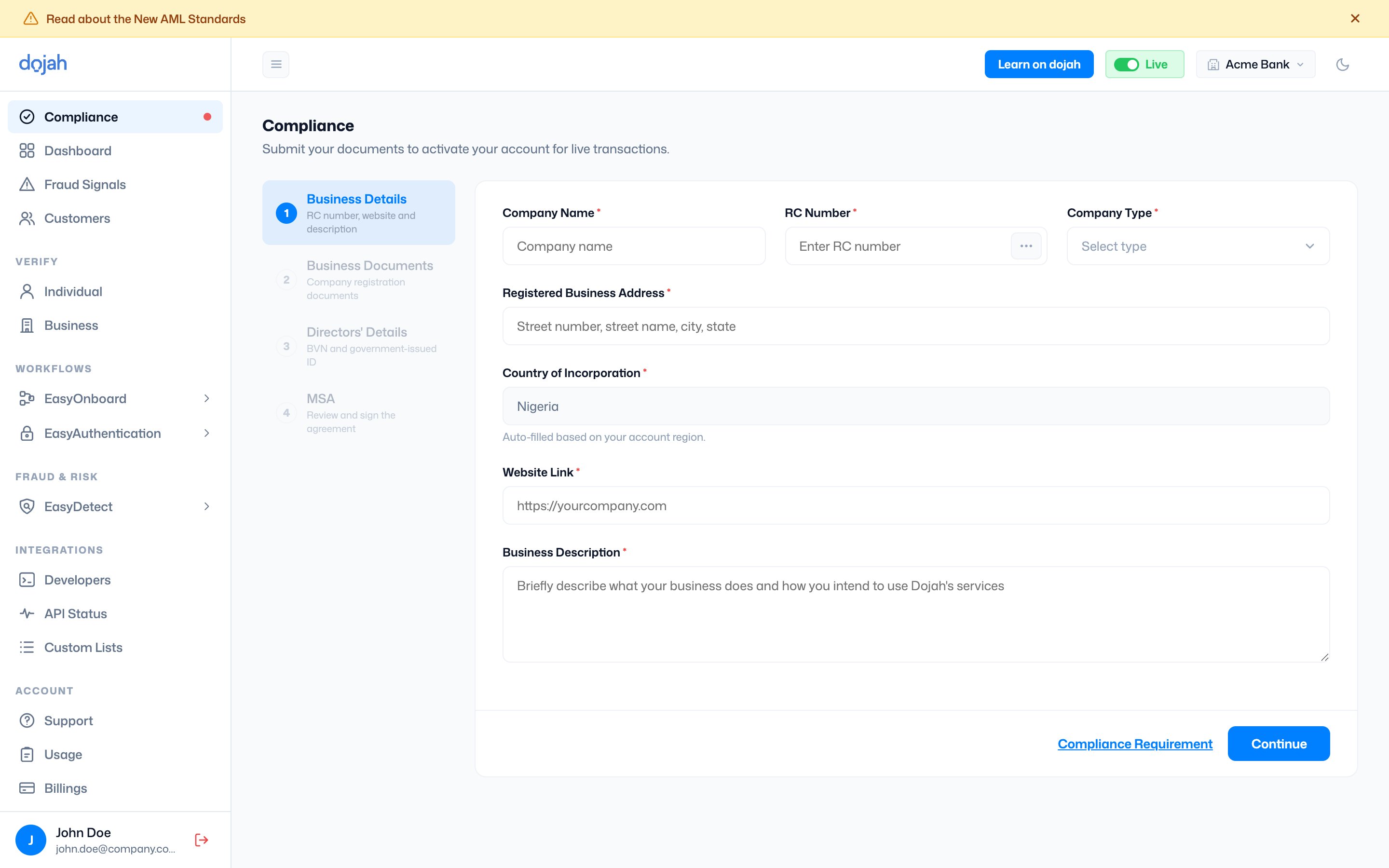
Step 1 - Business Details

The first step captures your company’s registration and identity information. RC Number - Enter your company’s CAC registration number. As soon as you enter a valid RC number and select the correct company type, the form automatically queries the CAC database and displays a verification panel showing the registered company name, company type, registration status, date registered, and registered address. A green ‘Verified’ label confirms the number was found. Review this information carefully; if the details shown do not match your company, stop and confirm you have the correct RC number before proceeding. Business Incorporation Number - For non-Nigerian countries, instead of an RC Number, you enter your company’s local business incorporation or registration number as issued by the relevant authority in your country. Unlike Nigerian accounts where the form auto-verifies the number against the CAC database, non-Nigerian accounts enter the number without an automatic verification check. Company Type - Select the type that matches your registration: Business Name, Company, Incorporated Trustees, Limited Partnership, or Limited Liability Partnership. This must match the CAC record exactly for verification to succeed. Registered Business Address - Enter your company’s registered address. This is your current operational address. Country of Incorporation - Pre-filled based on your account region. For Nigerian accounts, this will be set to Nigeria automatically. For non-Nigerian countries, unlike Nigerian accounts, where this is auto-filled, non-Nigerian accounts must manually enter the country where the business is incorporated. Enter the full country name. Website Link - Enter your company’s official website URL. If your business does not have a public website, contact Dojah support before proceeding to confirm what to provide. Business Description - Write a brief description of what your business does and specifically how you intend to use Dojah’s services. Be clear and specific; for example, “We are a digital lending platform that uses Dojah for BVN verification and AML screening during customer onboarding.” Vague descriptions may slow down the review process. Click Continue when all fields are complete.

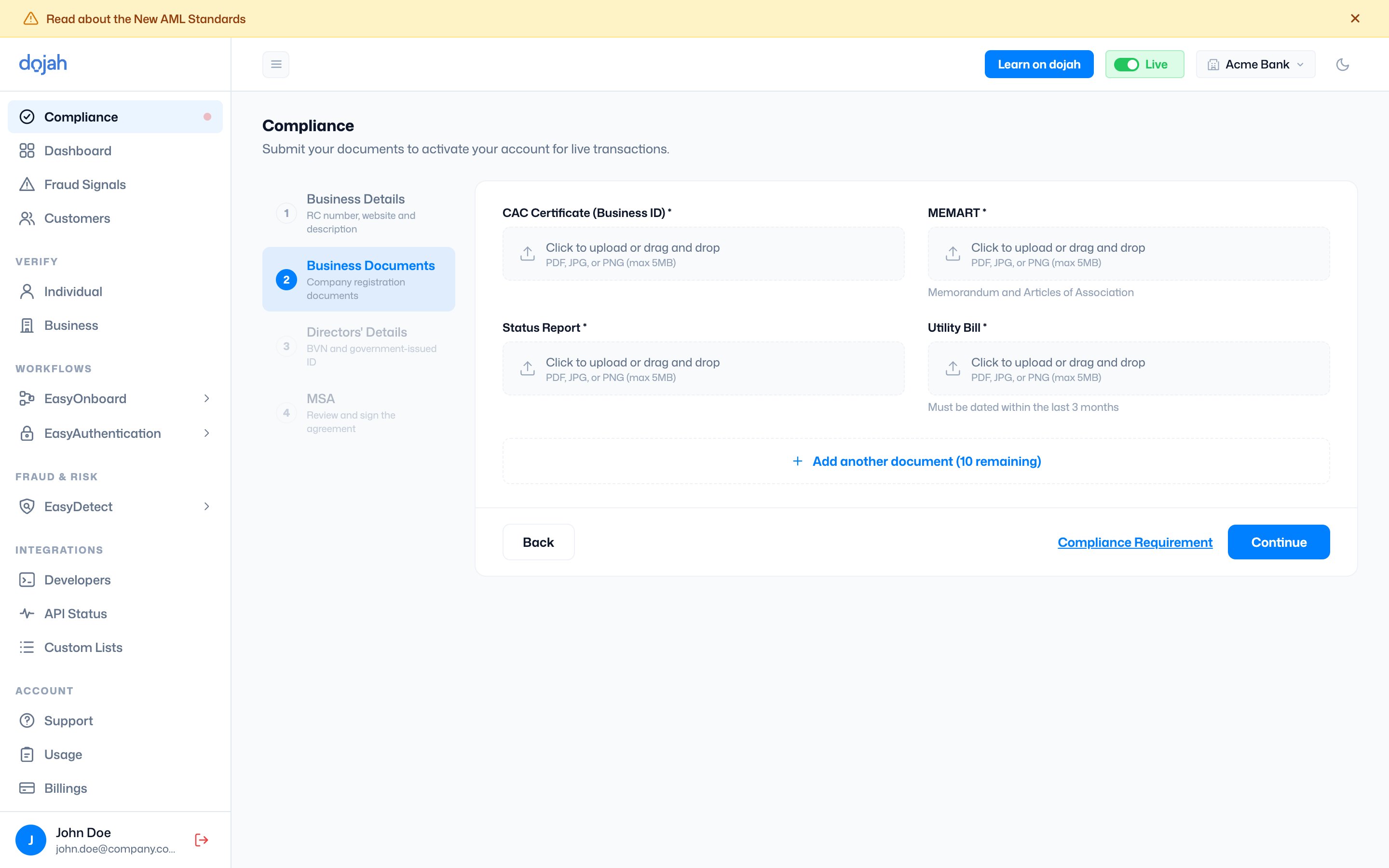
Step 2 - Business Documents

The second step requires you to upload official documents that verify your company’s legal existence and operational legitimacy. All documents must be uploaded as PDF, JPG, or PNG files with a maximum size of 5 MB each. CAC Certificate (Business ID) - Upload your company’s Certificate of Incorporation issued by the Corporate Affairs Commission. This is the primary proof that your business is legally registered. MEMART - Upload your memorandum and articles of association. This document defines your company’s purpose, structure, and rules of operation as filed with the CAC. It is labelled as required for limited companies. Status Report - Upload a current CAC Status Report confirming your company’s registration status. This can be obtained from the CAC portal or a licensed CAC agent. Utility Bill - Upload a recent utility bill that shows your business address. This must be dated within the last 3 months. Acceptable utility bills include electricity, water, or waste bills issued to the business at the registered address. Each upload field accepts drag-and-drop or a click-to-browse selection. Once a file is uploaded successfully, it shows a green tick alongside the filename and an “Uploaded” confirmation. You can remove and replace any file before submitting using the Remove button next to each uploaded document. Adding supplementary documents - If you have additional supporting documents beyond the four required ones, click + Add another document to attach them. Up to 10 additional documents can be added. Click Continue once all required documents are uploaded.

Non-Nigerian accounts are simpler than Nigerian accounts. The form requests:
Certificate of Incorporation - The official document issued by your country’s corporate registration authority confirming your company’s legal existence. This is the equivalent of the CAC certificate for Nigerian businesses. Additional supporting documents can be added using + Add another document - up to 10 extra files can be attached. If your country’s registration authority issues additional documentation alongside the certificate (such as a business licence, tax registration certificate, or equivalent), attach these as supplementary documents. All files must be in PDF, JPG, or PNG format with a maximum size of 5MB each.

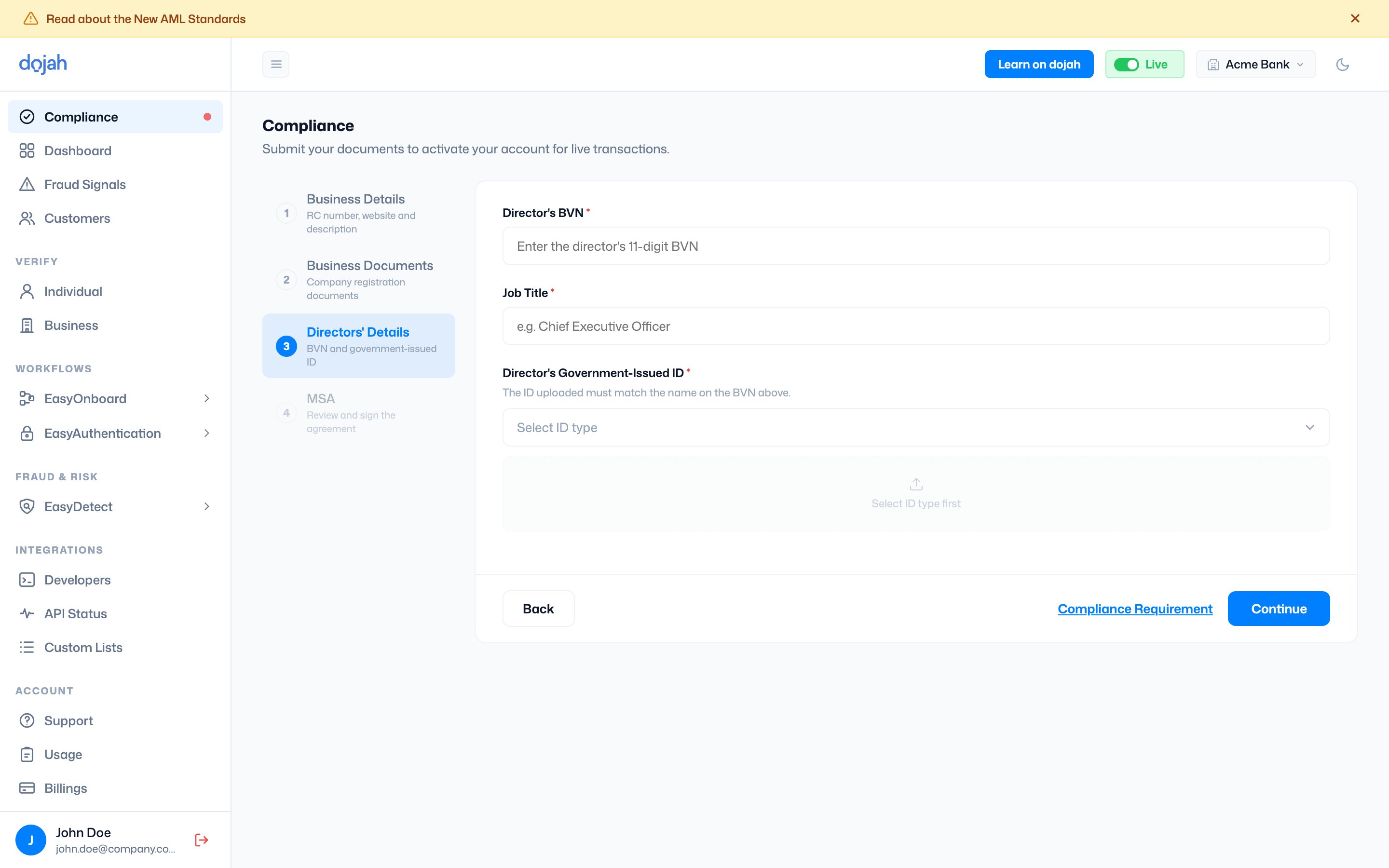
Step 3 - Directors’ Details

The third step verifies the identity of your company’s director or primary authorised signatory. Director’s BVN - Enter the 11-digit Bank Verification Number of the director. As soon as a valid BVN is entered, the form queries the CBN database and displays a verification panel showing the director’s first and last name with a green ‘Verified’ label. This confirms the BVN is valid and the identity record exists. The name shown here must match the name on the government-issued ID you upload in the next field. Job Title - Enter the director’s official role within the company, for example, Managing Director, Chief Executive Officer, or Director, etc. Director’s Government-Issued ID - Select the type of government ID you are uploading for the director. The available options are:
  • International Passport
  • National ID Card
  • Driver’s License
  • Voter’s Card
The ID uploaded must carry the same name as the name returned by the BVN verification. A mismatch between the BVN name and the ID name will cause the compliance submission to be rejected. If the director’s name appears differently across documents (for example, a middle name is present on one but not the other), contact Dojah support before submitting to confirm how to handle it. Upload a clear image of the selected ID document. Click Continue once the director’s details are complete.

For non-Nigerian accounts, the Directors’ Details step does not include a BVN field. BVN is a Nigeria-specific identifier. Instead, the step collects:
Job Title - The director’s official role within the company, for example, Chief Executive Officer or Managing Director. Director’s Government-Issued ID - Select the type of ID being submitted for the director. The available options for non-Nigerian accounts are:
  • International Passport
  • NIN (where applicable)
  • Driver’s License
Upload a clear image of the selected ID document. As with Nigerian accounts, the name on the ID must match the director’s name as registered with the company.

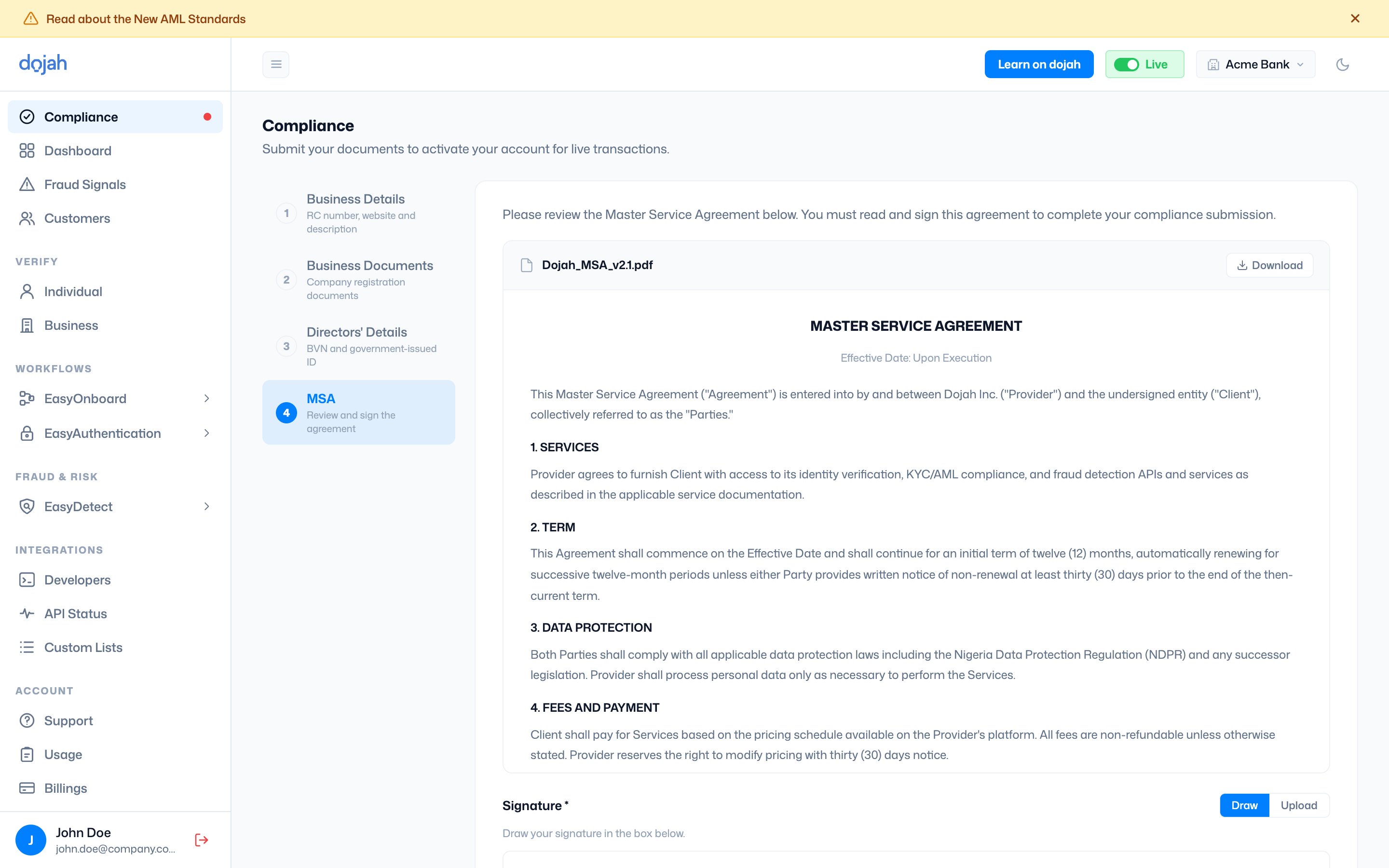
Step 4 - Master Service Agreement (MSA)

The final step requires you to read and sign the Master Service Agreement; the legal contract between your organisation and Dojah Inc. that governs your use of Dojah’s services. Reading the agreement - The full text of the MSA is displayed on screen. Read it carefully before signing. Key provisions include services, term, data protection, and more. You can download a copy of the MSA using the Download button in the document header. A signed copy will be made available to you in the same location once your submission has been processed and approved. Signing the agreement - Below the MSA text is a signature field. You have two options:
  • Draw - Use your mouse, trackpad, or touchscreen to draw your signature directly in the signature box. Click Clear to erase and start again if needed.
  • Upload - If you prefer to upload an image of your written signature, switch to the Upload tab and attach a signature image file.
Confirming agreement - Check the box labelled ‘I have read and agree to the Master Service Agreement…’ Click Submit for Review to submit your compliance application.