Documentation Index

Fetch the complete documentation index at: https://docs.dojah.io/llms.txt

Use this file to discover all available pages before exploring further.

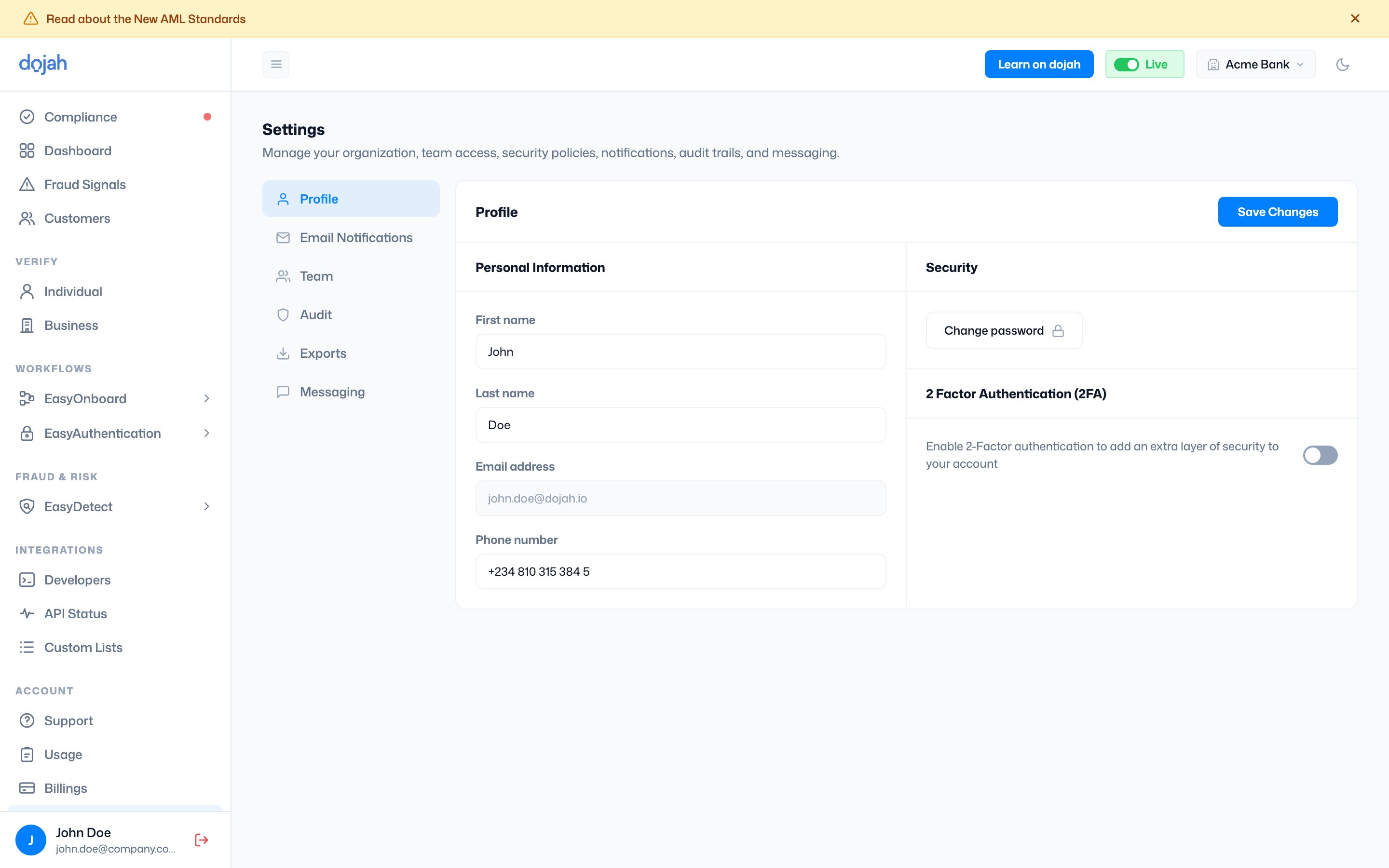
The Profile page is where you manage your personal account information and security settings. Changes made here apply to your individual login; they do not affect other team members on the account.

Security

Change password: Click this to initiate a password change. A modal is displayed for you to enter the current password, the new password, and to confirm your password. Two-Factor Authentication (2FA) adds a second layer of security to your Dojah account login. With 2FA enabled, logging in requires both your password and a one-time code generated by an authenticator app on your phone. Even if someone obtains your password, they cannot access your account without also having your device. For accounts with access to live customer data, verification records, and compliance information, enabling 2FA is strongly recommended. If your organisation has a security policy, check whether 2FA is required for all team members; each person must enable it individually from their own profile page.

Setting up your authenticator app

Before you can enable 2FA on Dojah, you need an authenticator app installed on your phone. Supported apps include Google Authenticator, Authy, Microsoft Authenticator, and any other TOTP-compatible authenticator app. If you do not have one, download Google Authenticator or Authy from your device’s app store before proceeding. Once you toggle 2FA on, the Setup 2FA modal opens with two ways to link your authenticator app to your Dojah account: Scan the QR code: Open your authenticator app, tap the option to add a new account, and choose to scan a QR code. Point your phone’s camera at the QR code displayed in the modal. Your authenticator app will automatically detect and add your Dojah account, immediately beginning to generate 6-digit codes that refresh every 30 seconds. Enter manually: If your phone cannot scan the QR code, click ‘Copy’ next to the manual entry key shown below the QR code and paste it into your authenticator app’s manual entry field. This achieves the same result as scanning; your app will start generating codes for your Dojah account. Once your authenticator app has added the account and is generating codes, click Continue. After clicking Continue, the Verify 2FA modal opens. Your authenticator app has already generated a 6-digit code for your Dojah account. Open the app, find the code next to your Dojah entry, and enter it one digit at a time into the six boxes shown. The code refreshes every 30 seconds, if it expires before you finish entering it, wait for the next code to appear in the app and use that one instead. Do not reuse an expired code. Once you enter a valid code, 2FA is confirmed and enabled on your account. From your next login onwards, after entering your password, you will be prompted to open your authenticator app and enter the current 6-digit code before access is granted.

Disabling 2FA

To turn off 2FA, go back to Settings > Profile and toggle the 2FA switch off. You will be prompted to generate a code on your authenticator app to confirm disabling. Once disabled, you can log in with your password alone; however, your account is less secure without it, so only disable 2FA if you have a specific reason to do so.