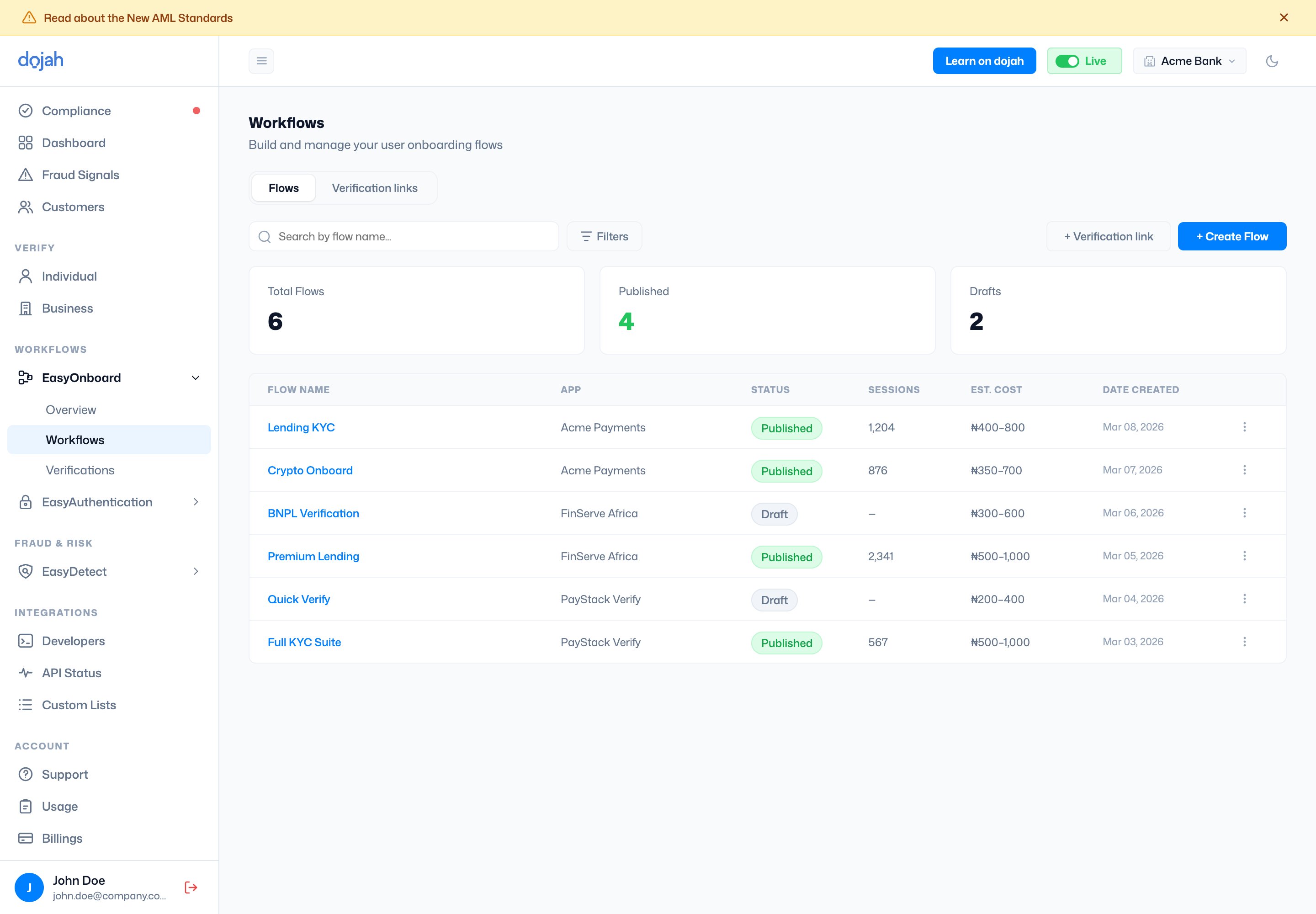
A workflow is tied to an app — its branding and verification data run under that app’s keys. Pick the app when you create the flow. See Apps for how apps work.
The workflow builder
Open a workflow to edit it in the builder — a two-panel view with a live phone preview on the right, so you see exactly what users will. Work is organised across five tabs: Appearance, Steps, Fraud Check, Settings, and Integration. Save your work as a Draft and Publish when it’s ready.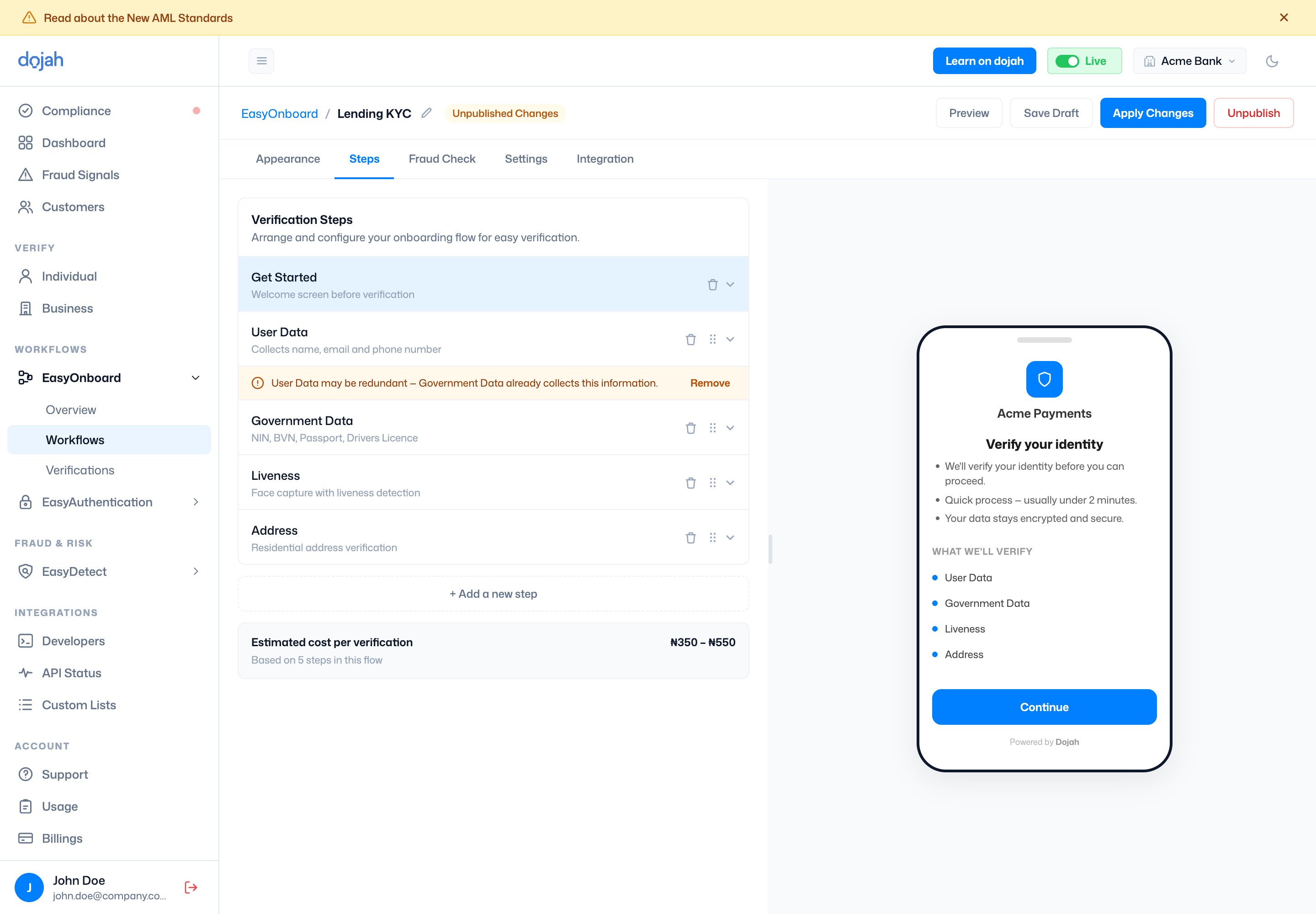
Appearance
Brands the widget so it matches your product. Settings here drive the live preview.Steps
The verification steps in the flow, in order. Add them from a catalogue:
Each step shows its own cost, and the builder totals an estimated cost per verification as you go.
Fraud Check
Under Fraud Rules you switch on checks that watch for suspicious activity as a user goes through the flow. Each rule is toggled on or off, and you choose what happens when it triggers — Pending (flag the session for your review) or Fail (reject it automatically).Liveness configurations
The Liveness Check rule runs in one of two configurations:Settings
Controls how verifications are reviewed, who’s notified, and where the flow runs:Integration
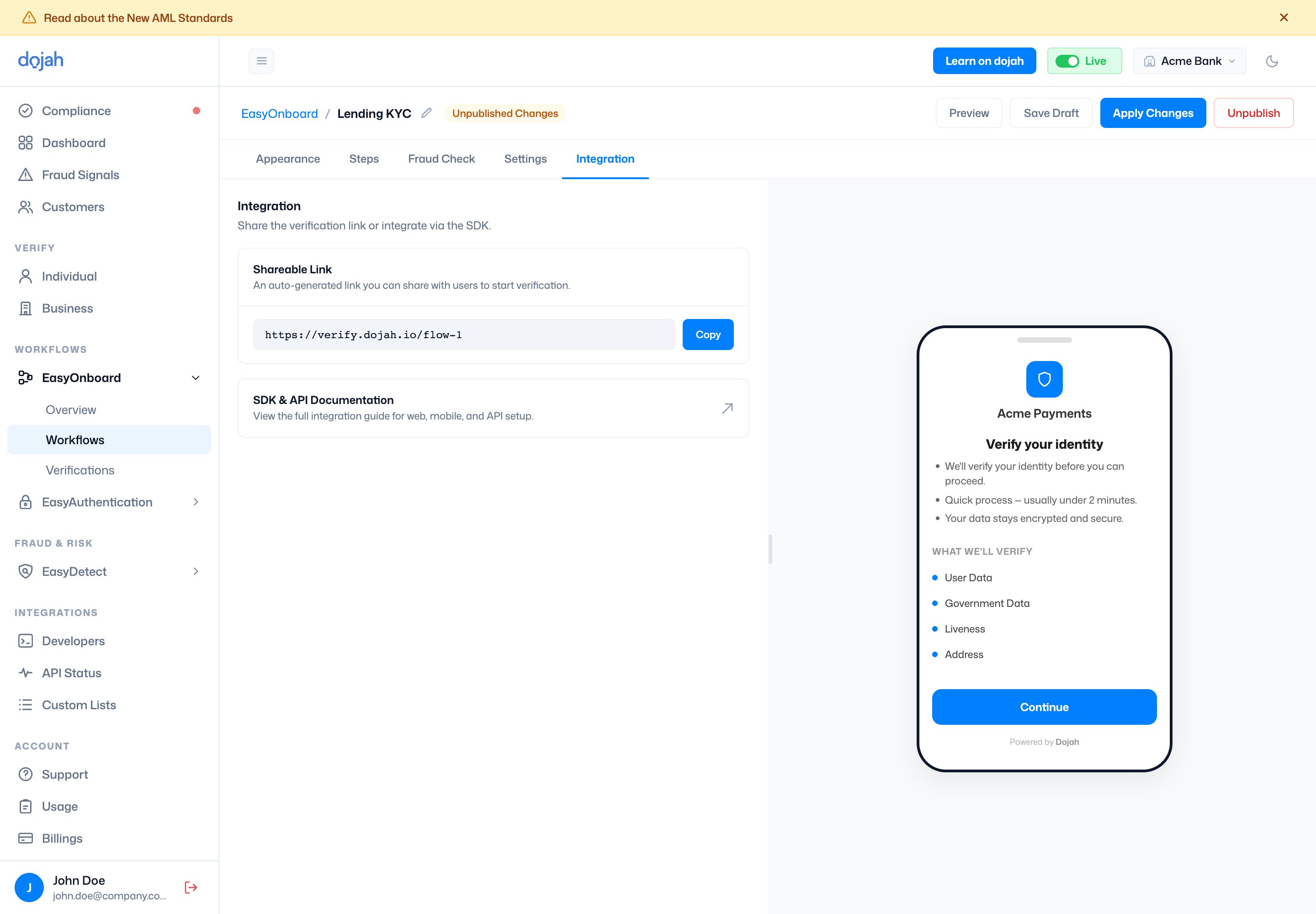
How you take the flow live. Once a workflow is published, the Integration tab gives you a Shareable Link — a hosted verification page you can send straight to users — plus a link to the SDK & API reference for embedding the same flow in your own web or mobile product.